

Square
If your shop rings up sales on Square, connect it to Countertop. Then:
- every card you take in or reprice shows up in Square with its price and count,
- the barcode on your Countertop labels rings up that exact card at the register, and
- when a card sells at the register, it comes off your Countertop inventory by itself.
Countertop keeps its cards in their own Square category and never changes the items you already have in Square.
Connect Square (owner only)
Section titled “Connect Square (owner only)”-
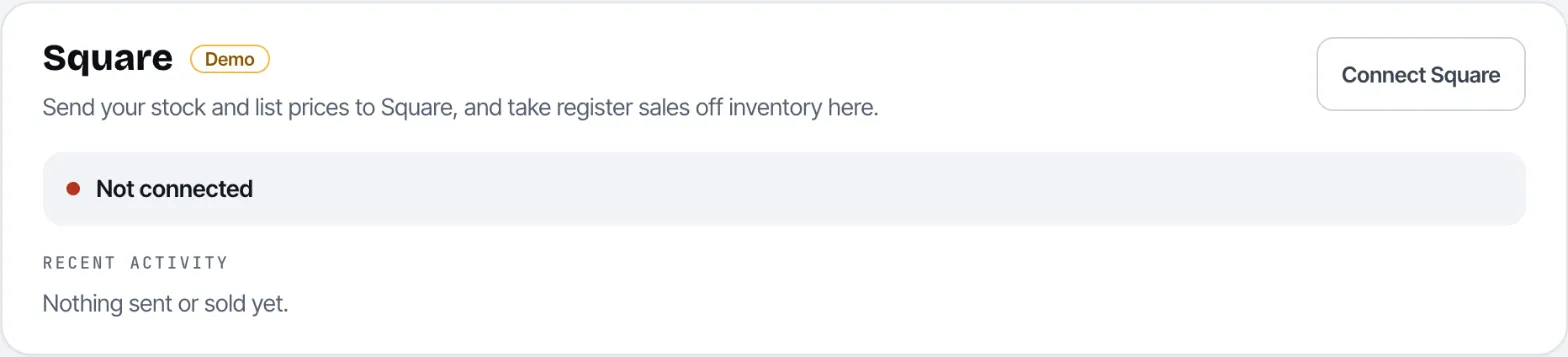
Go to Settings → Connections.
-
Click Connect Square. Square’s sign-in page opens. Sign in with the Square account the shop uses and click Allow.
-
Back in Countertop, pick the Square location to sync (if you have more than one) and click Use this location.
Countertop then sends your stock to Square. The status changes to Connected and the Recent activity list shows what was sent.
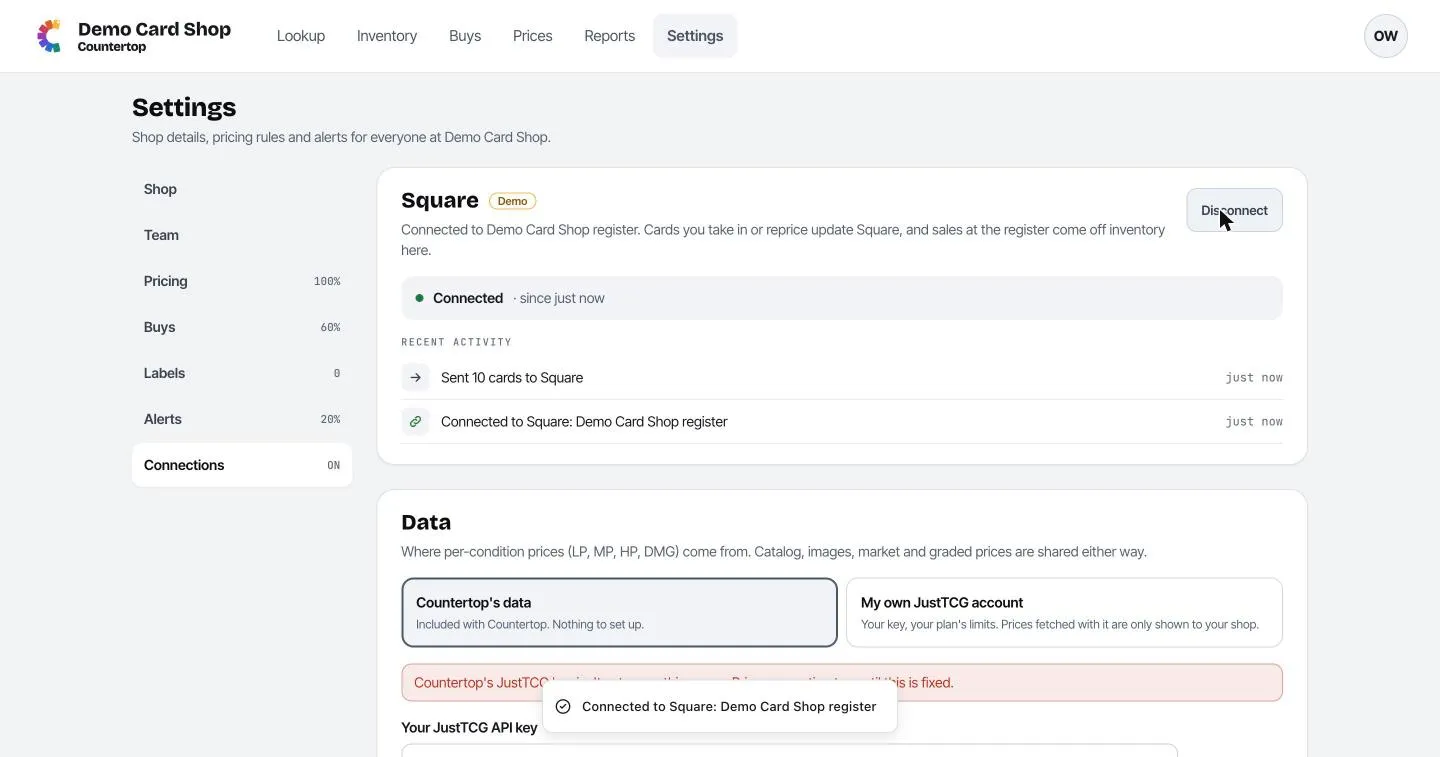
To stop syncing, click Disconnect.
Selling at the register
Section titled “Selling at the register”Scan the Countertop label’s barcode with your Square barcode scanner. The register rings up that exact card at its asking price, and when the sale completes, Countertop takes the copy off inventory.
Sales to place
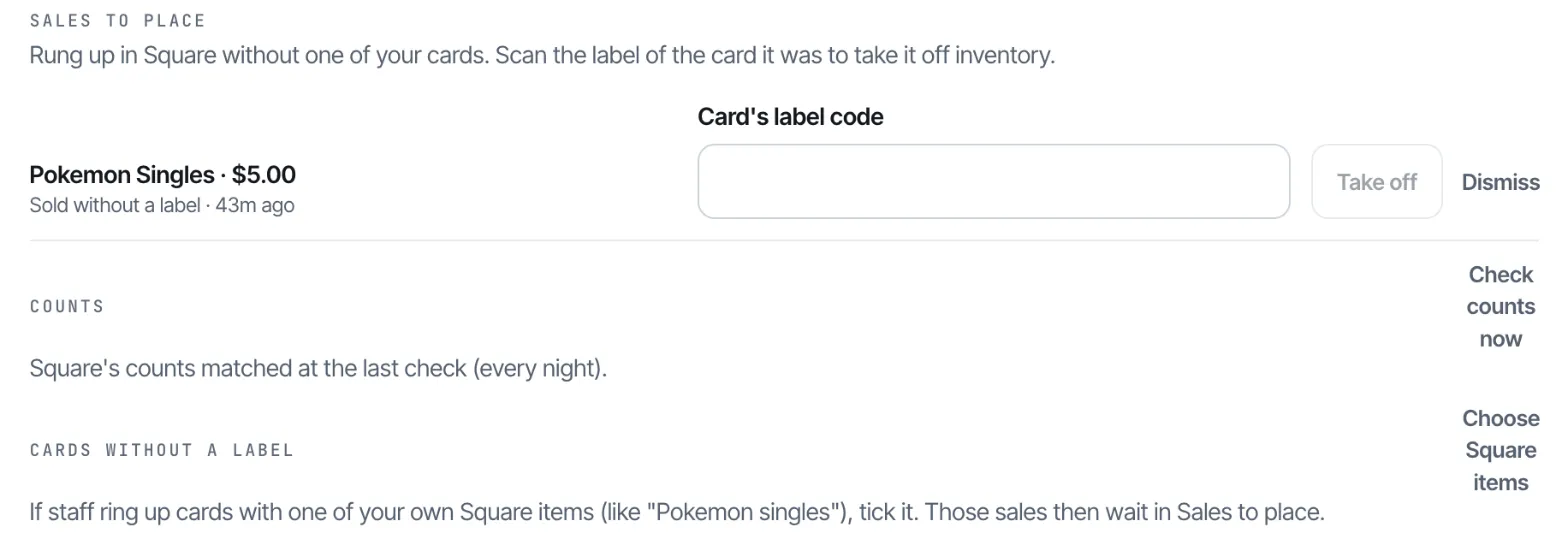
Section titled “Sales to place”Sometimes a card gets rung up without its label, for example as a custom amount or with a general “Pokemon singles” button. Countertop can’t tell which card that was, so the sale waits under Sales to place.
For each one:
- Scan (or type) the label code of the card that was sold and click Take off. That copy comes off inventory.
- Or click Dismiss if it wasn’t a card you track.
Cards without a label
Section titled “Cards without a label”If staff use one of your own Square buttons for singles (like “Pokemon singles”), click Choose Square items and tick it. Sales of that item then show up in Sales to place instead of being missed.
Count checks
Section titled “Count checks”Every night, Countertop compares its counts with Square’s. If they all match, you’ll see “Square’s counts matched at the last check.” Click Check counts now to check right away.
If a card’s count differs, it’s listed with both numbers. Pick which is right:
- Use ours sends Countertop’s count to Square.
- Use Square’s takes Square’s count into Countertop.
Returns
Section titled “Returns”Refunds in Square are recorded in Countertop’s activity, but the card isn’t put back in stock automatically. If the card came back, add it to stock again with + in Inventory.