

Buying cards from customers
When someone brings cards in to sell, use Buys. You add their cards to a list, Countertop works out an offer, you agree a price, and when you pay, every card goes into stock with its cost recorded. Nothing is added to stock until you click Complete buy, so you can haggle freely.
Start a buy
Section titled “Start a buy”-
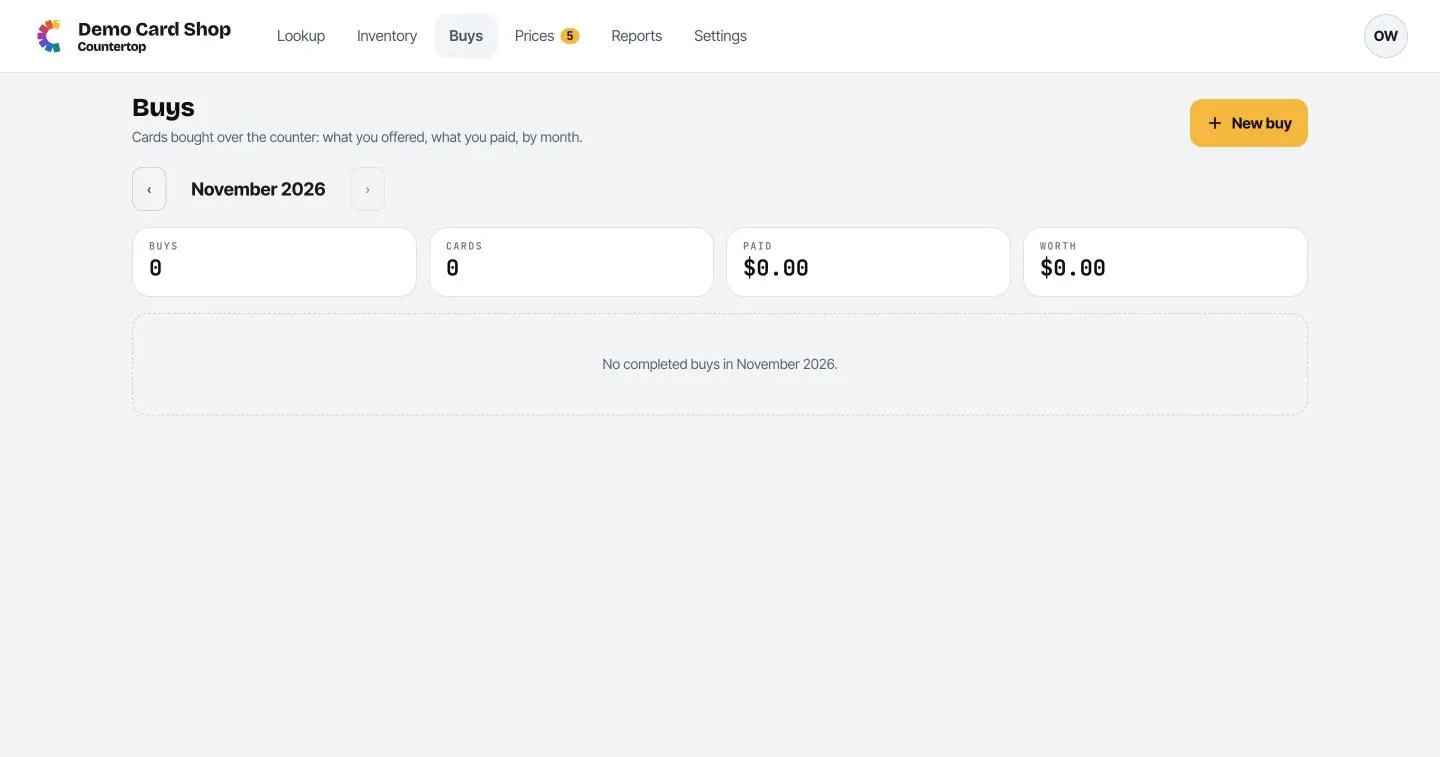
Click Buys in the menu bar, then New buy.
-
Optionally type the Seller’s name and a Note (like “binder, trade night”).
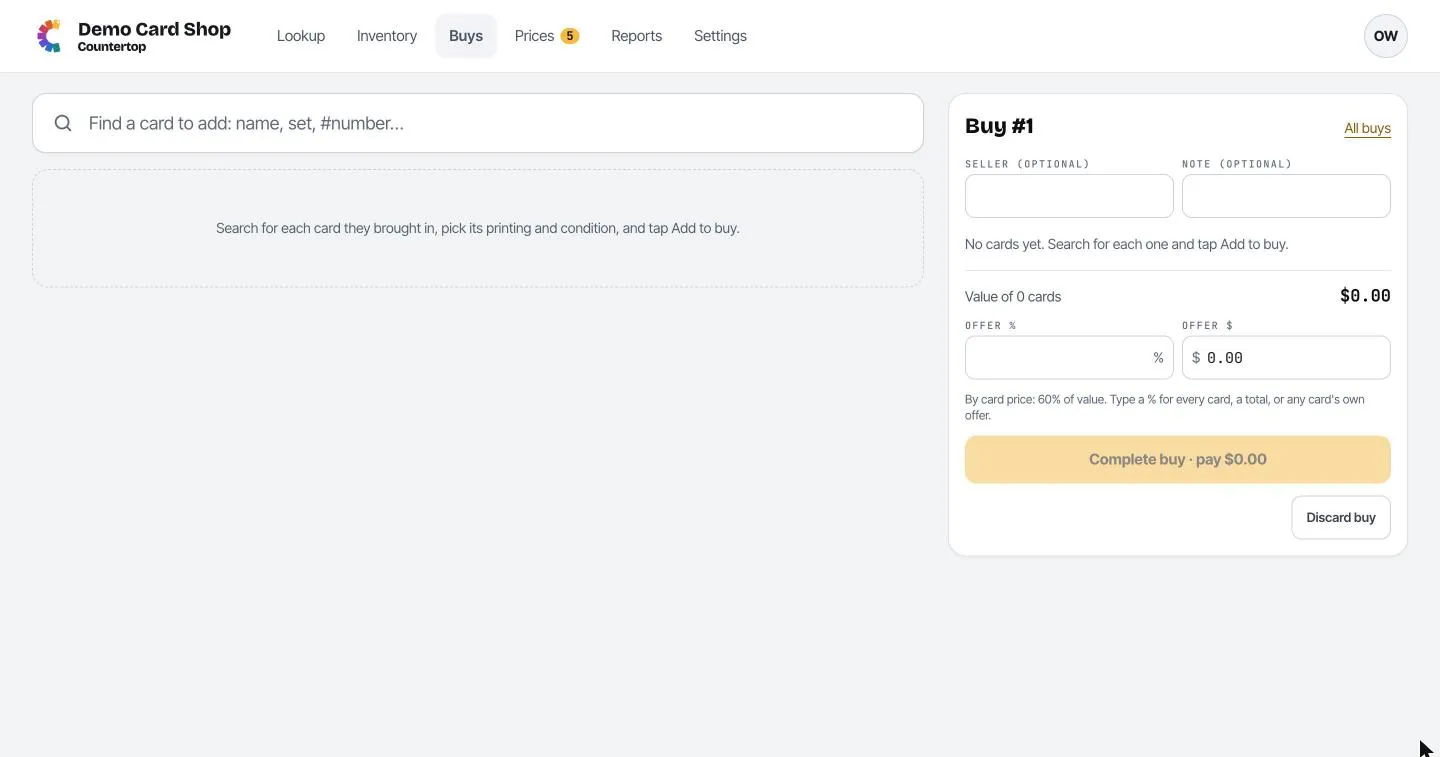
Add their cards
Section titled “Add their cards”- Search for each card in the box on the left, the same way as on Lookup.
- Pick the printing and condition on the card.
- Click Add to buy.
Each card appears on the right with what it’s worth and what you’d offer for it.
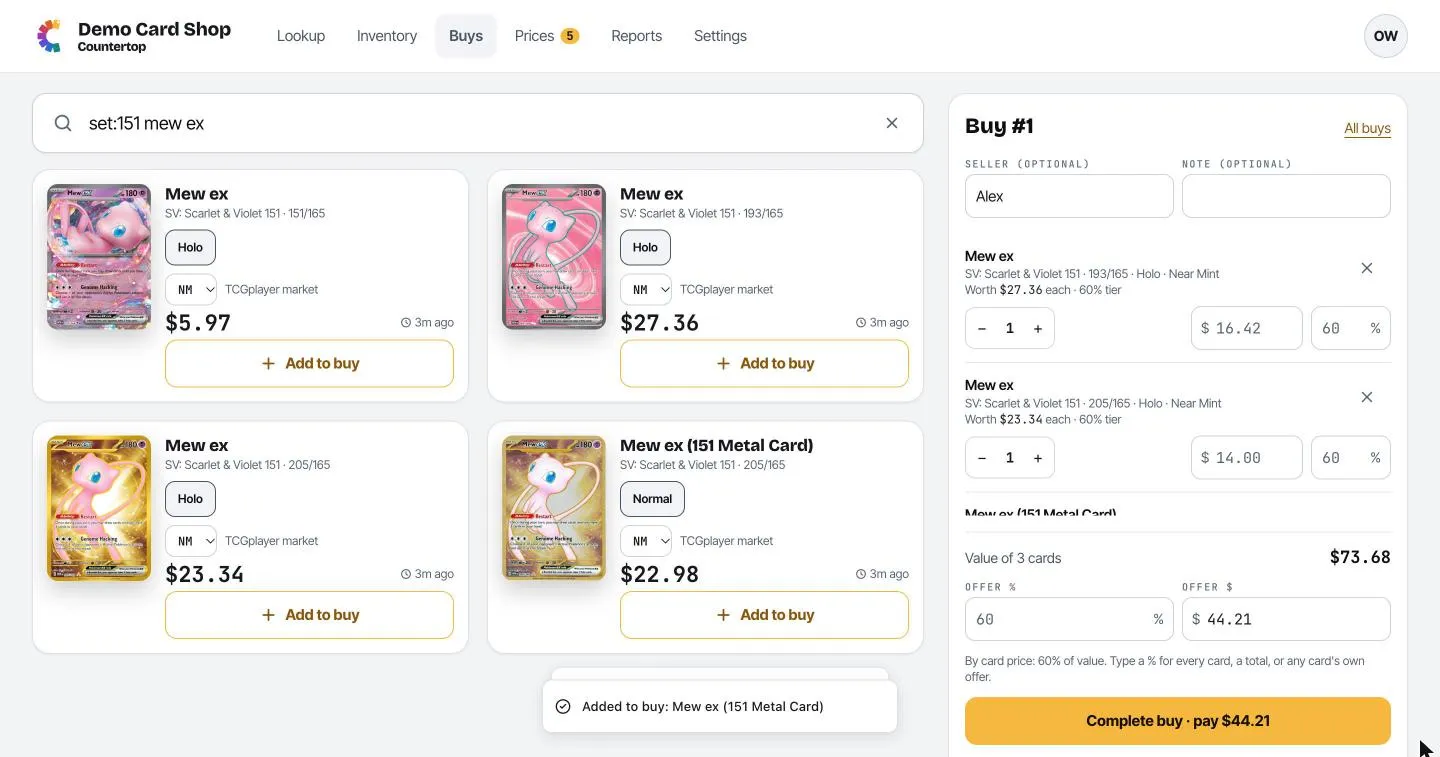
- Use − and + for several copies of the same card.
- Click × to take a card off the list.
- Each card has its own offer in $ and %. Change either to give one card a special offer.
Make the offer
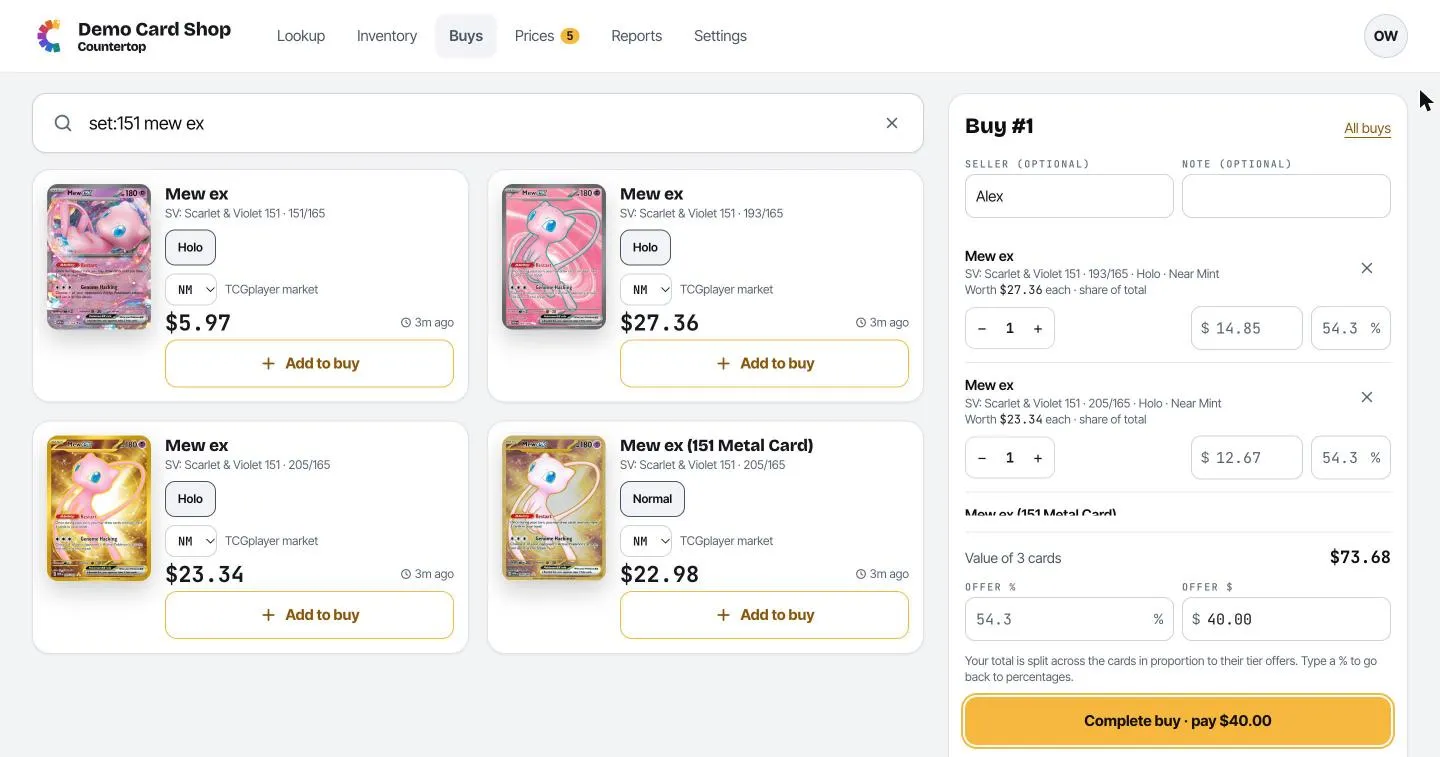
Section titled “Make the offer”At the bottom of the panel:
- Value of N cards is what everything is worth at market.
- Offer % starts at your shop’s default (set in Settings → Buys). Type a different % to change the offer on every card.
- Offer $ is the total. Type a round number (say $40) and Countertop splits it across the cards for you, in proportion to their value.
Complete the buy
Section titled “Complete the buy”Once you’ve agreed and paid, click Complete buy · pay $X. Every card goes into stock, and each one’s cost is its share of what you paid.
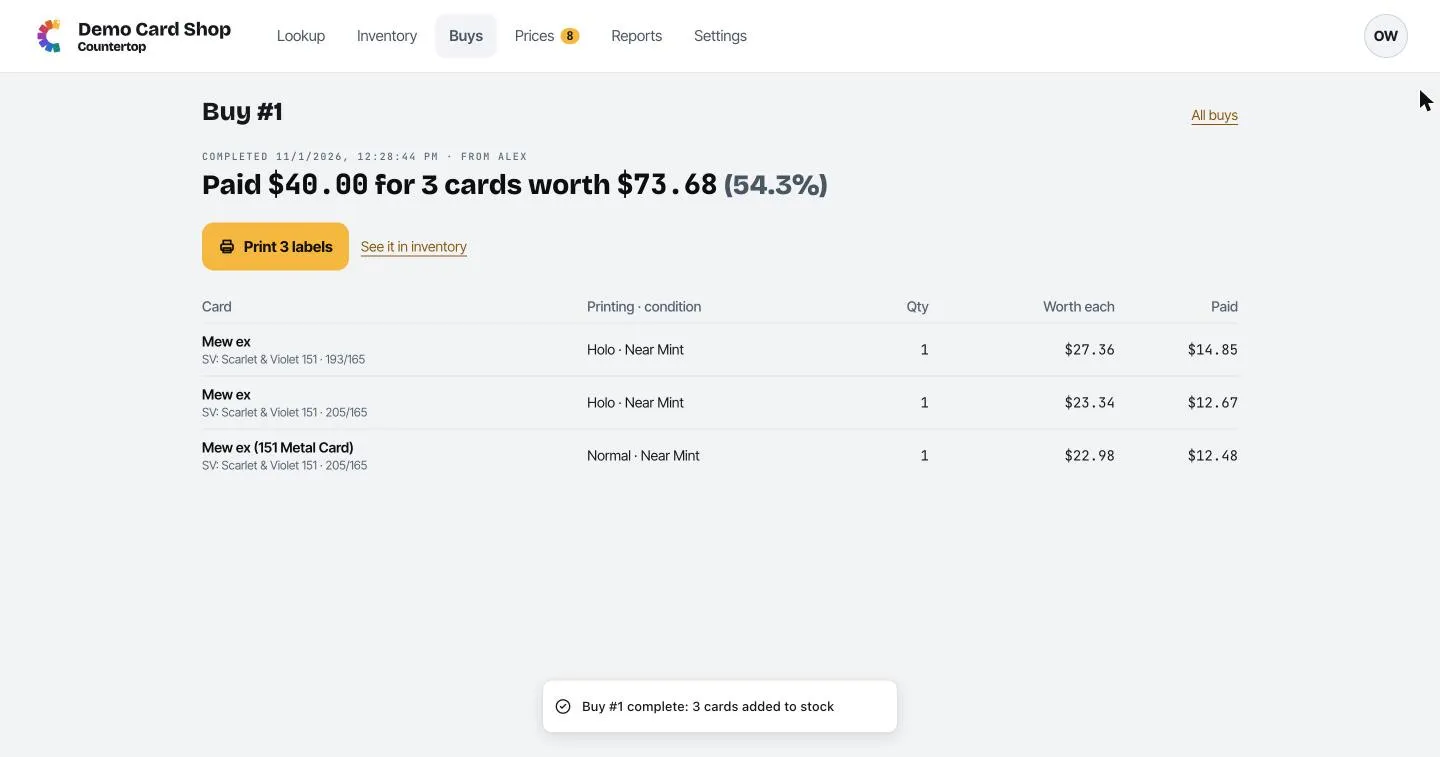
From here you can Print labels for every card in the buy (see Printing labels) or click See it in inventory.
Changed your mind before paying? Click Discard buy.
Buy history
Section titled “Buy history”The Buys page lists completed buys by month, with totals for the number of buys, cards, what you paid and what they’re worth. Use the ‹ › arrows to change month, and click a buy to see its cards.