

Printing labels
Countertop prints price labels for your cards on a label printer (like a DYMO LabelWriter) or on sticker sheets from any office printer. Each label can carry:
- the card’s name, set, number, printing and condition,
- the price,
- a barcode your register can scan (see Square), and
- a QR code customers can scan with their phone to see today’s price.
Where to print from
Section titled “Where to print from”- After a buy: click Print N labels on the completed buy.
- From Inventory: click Print labels for N shown for everything in the list, or open one card and click Print label.
Both open the Print labels page.
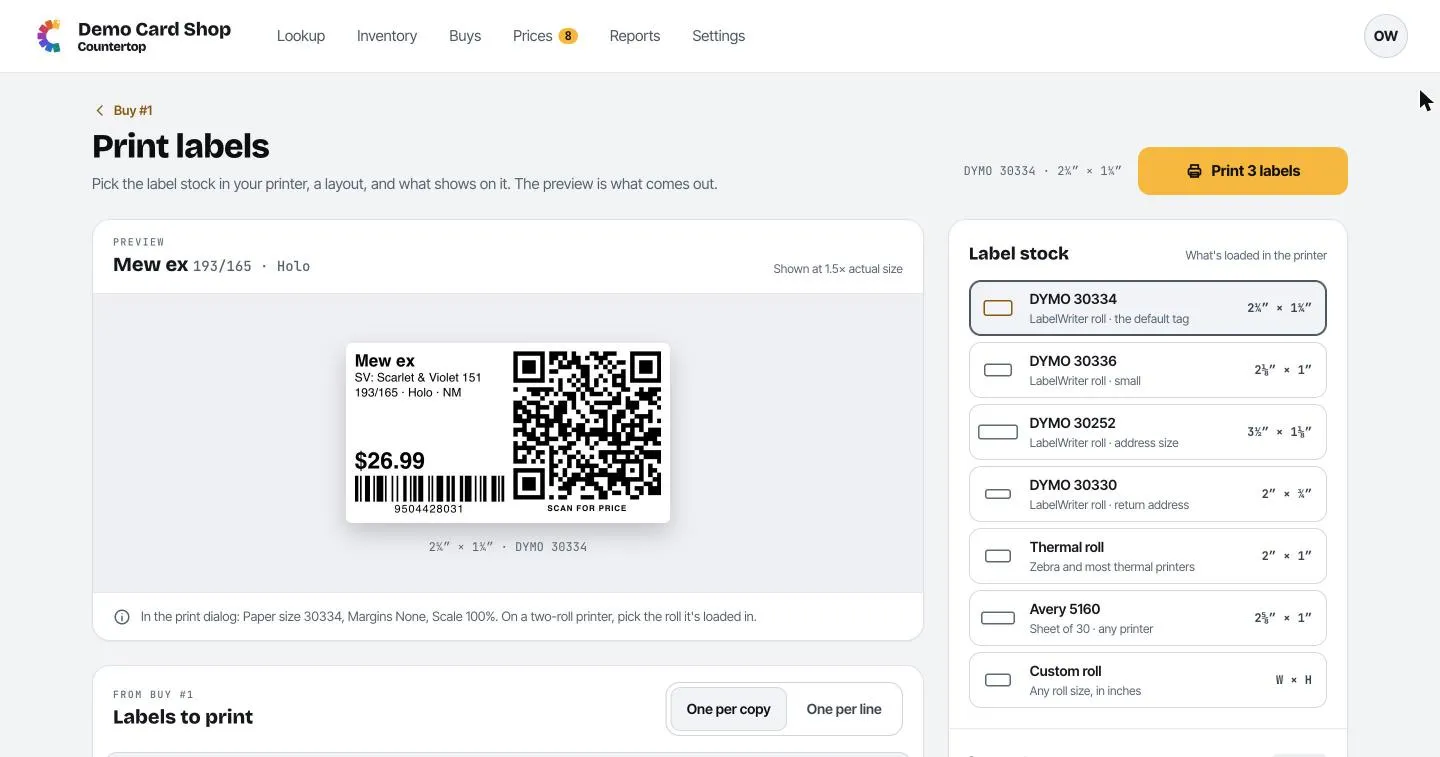
Print your labels
Section titled “Print your labels”-
Label stock (right side): pick what’s loaded in your printer. The common ones:
Choice Size Use it for DYMO 30334 2¼″ × 1¼″ The default price tag DYMO 30336 2⅛″ × 1″ Smaller tags DYMO 30252 3½″ × 1⅛″ Wider address-size labels DYMO 30330 2″ × ¾″ Small return-address labels Thermal roll 2″ × 1″ Zebra and most other thermal printers Avery 5160 2⅝″ × 1″ Sticker sheets (30 per page) on any printer Custom roll you choose Any other roll; type its width and height in inches -
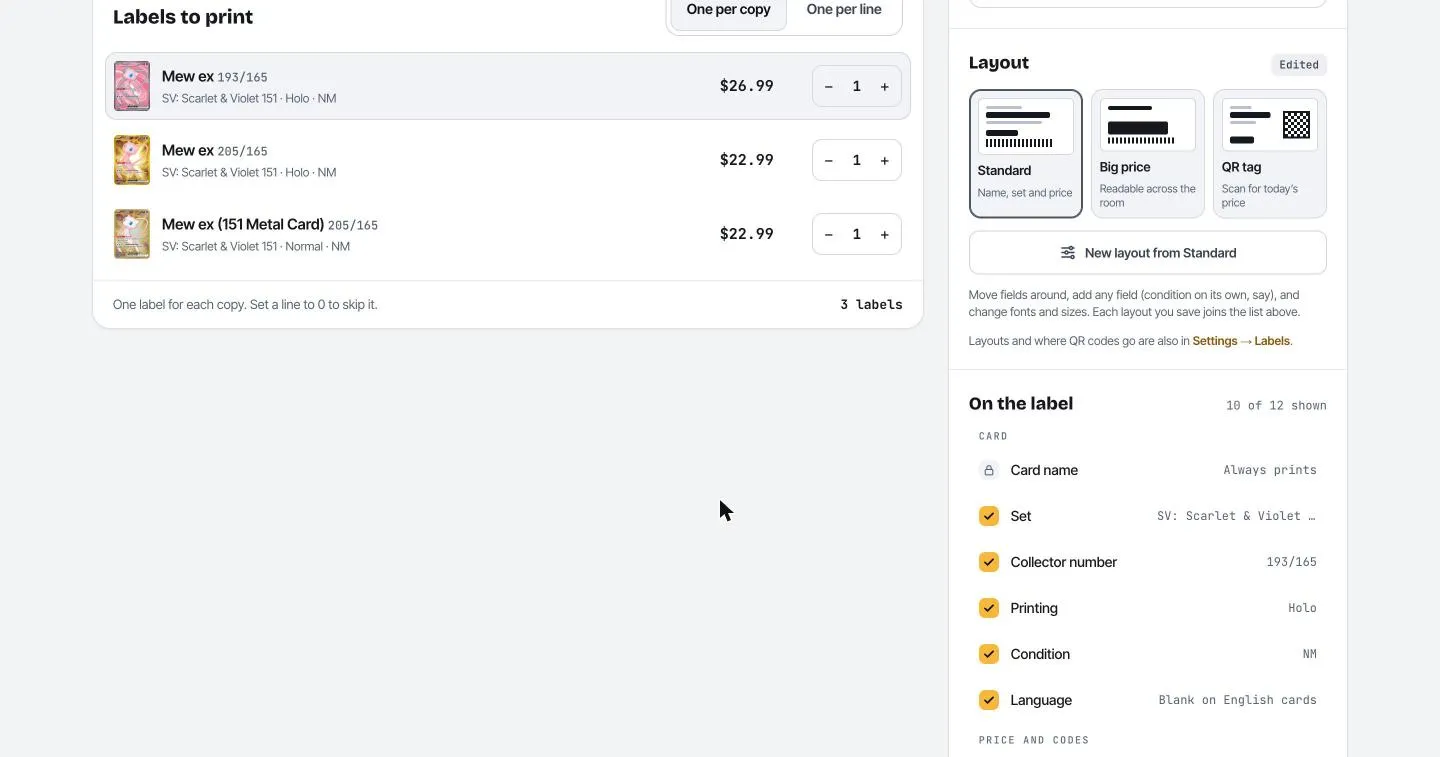
Layout: pick how the label looks.
-
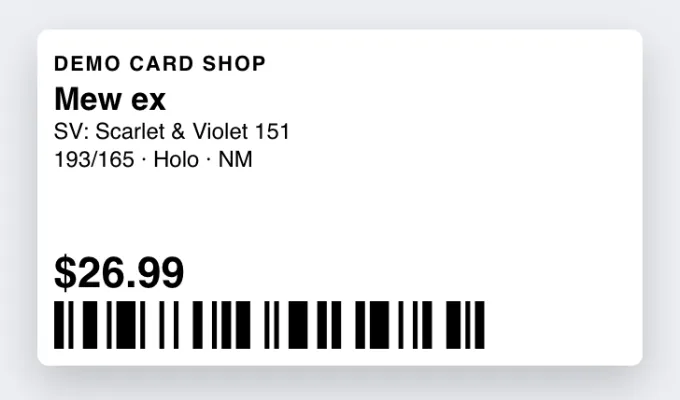
Standard: name, set and price, with a barcode.
-
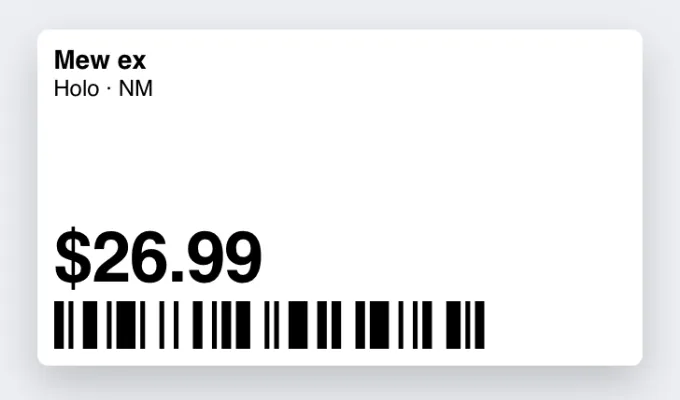
Big price: a large price you can read across the room.
-
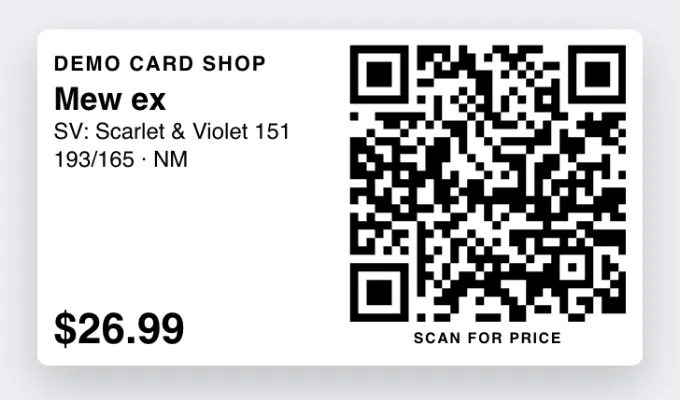
QR tag: a QR code customers scan for today’s price.
-
-
On the label: tick or untick what prints (set, number, condition, barcode, QR code, shop name, logo…). The card name always prints.
-
Labels to print: check the list. One per copy prints a label for each copy you have; One per line prints one per card. Use − and + to change a count, or set it to 0 to skip a card.
-
Check the preview. What you see is what prints.
-
Click Print N labels. Your computer’s print window opens.
Settings in the print window
Section titled “Settings in the print window”The page tells you what to choose, right under the preview. For a DYMO roll:
- Printer: your DYMO LabelWriter.
- Paper size: the label you picked (for example 30334).
- Margins: None.
- Scale: 100% (turn off “fit to page”).
- On a two-roll LabelWriter (like the 450 Twin Turbo), pick the roll the labels are loaded in.
Your browser usually remembers these after the first time.
- Avery 5160 sheets: paper size Letter, margins None, scale 100%. Load the sheet face up.
- Custom roll: if your label size isn’t in the paper list, add it as a custom paper size in the print window.
Design your own layout
Section titled “Design your own layout”Managers and owners can make their own layouts. On the Print labels page, click New layout from Standard (or from whichever layout is picked). You can also start one from Settings → Labels.
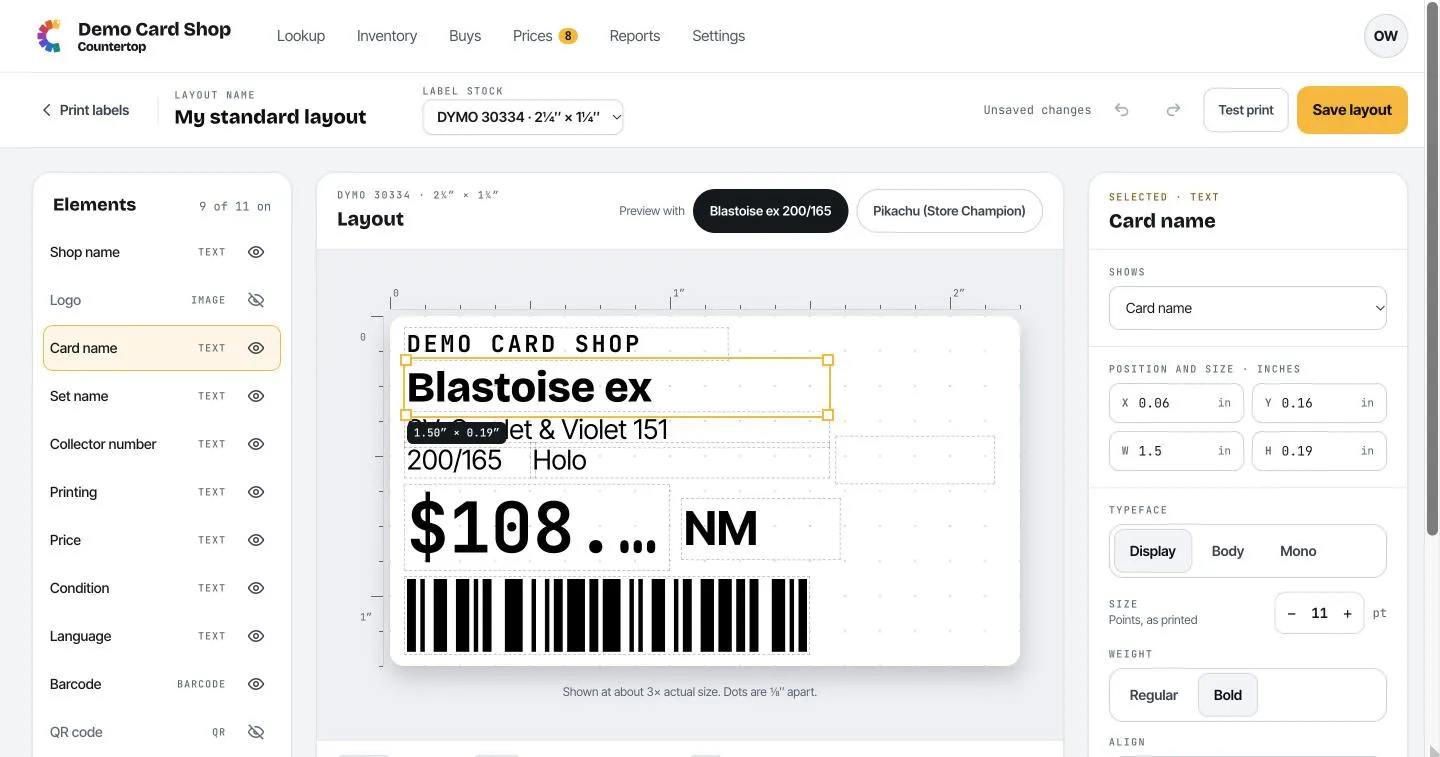
- Elements (left): everything that can go on a label. Click the eye to show or hide one.
- Layout (middle): drag items to move them, and drag the corners to resize them. Preview with switches the example card, so you can check a long name fits.
- Selected (right): fine-tune the item you clicked: what it shows, its exact position and size, typeface, size and weight.
- Test print prints one label to check alignment. Save layout adds it to the Layout list for everyone at the shop.
What customers see when they scan the QR code
Section titled “What customers see when they scan the QR code”A customer scanning the QR code with their phone camera sees the card and today’s price. No app or login needed.
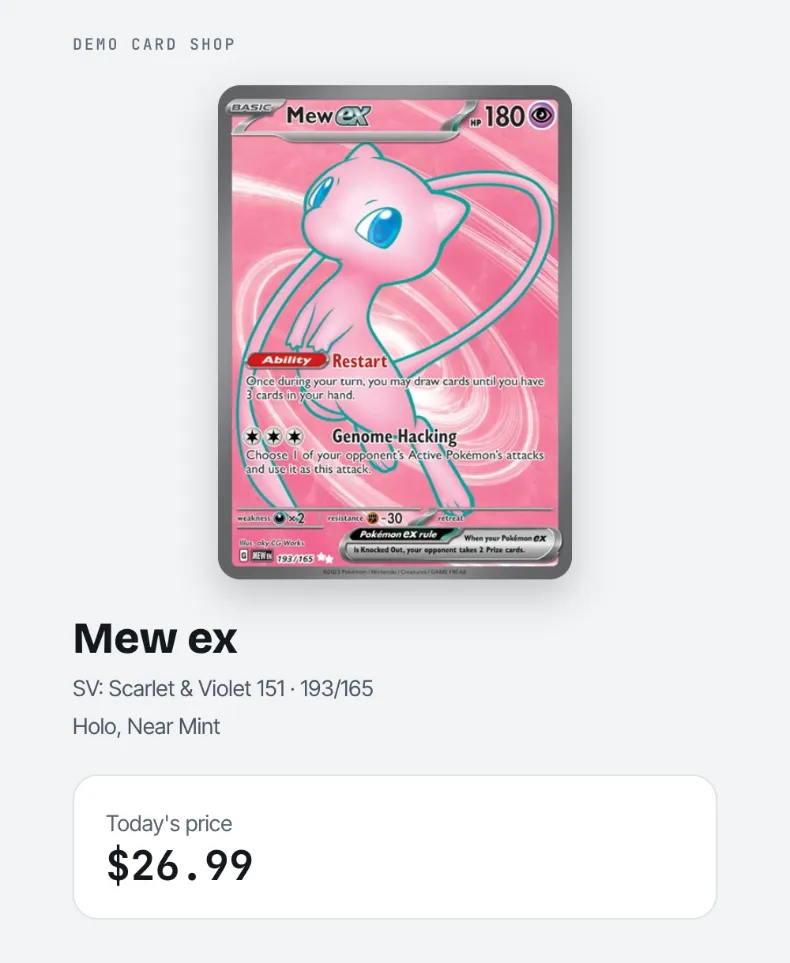
The owner can make QR codes open the card’s TCGplayer page instead, in Settings → Labels. This applies to labels you’ve already printed too.