

Settings
Settings holds the rules for the whole shop. Most pages are for the owner. Each page has its own Save settings button at the bottom; Discard throws away changes you haven’t saved.
The menu on the left shows each page with a hint of its current setting (your markup, your buy offer, and so on).
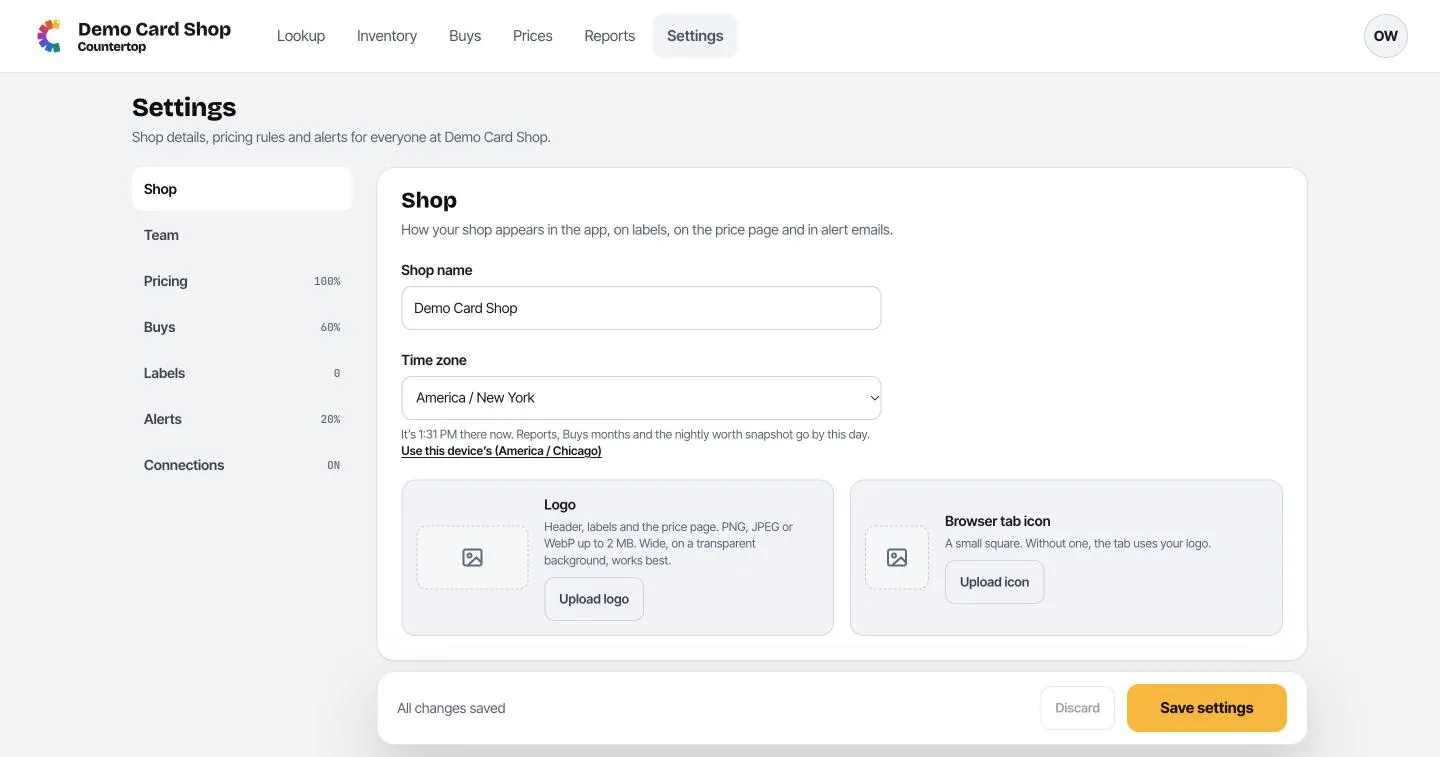
- Shop name: shown in the app, on labels, on the price page customers see, and in emails.
- Time zone: decides where “today” starts and ends for Reports and Buys. Click Use this device’s to match the computer you’re on.
- Logo: appears in the header, on labels and on the price page. PNG, JPEG or WebP up to 2 MB. A wide logo on a transparent background works best.
- Browser tab icon: a small square image for the browser tab. Without one, your logo is used.
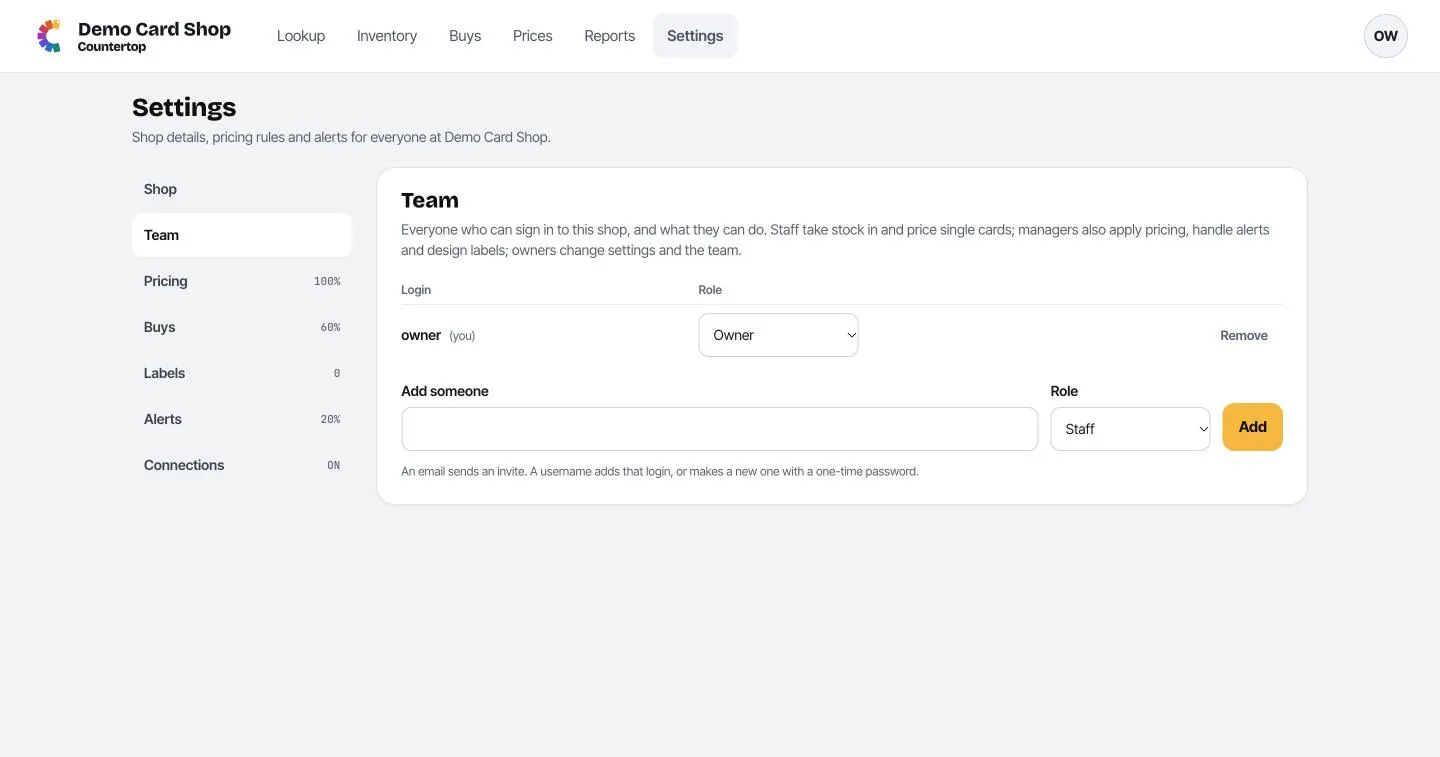
Everyone who can log in to your shop, and their role:
- Staff: look up cards, add them to stock, price single cards, print labels.
- Manager: everything staff can do, plus applying prices in bulk, handling price alerts, designing labels, and seeing money in Reports.
- Owner: everything, plus settings, the team and Square.
To add someone, type their email (they get an invite by email) or a username (this creates a login with a one-time password for you to pass on), pick a Role, and click Add.
Change a role with the menu next to a person. Remove cuts off their access straight away.
Pricing
Section titled “Pricing”Conditions
Section titled “Conditions”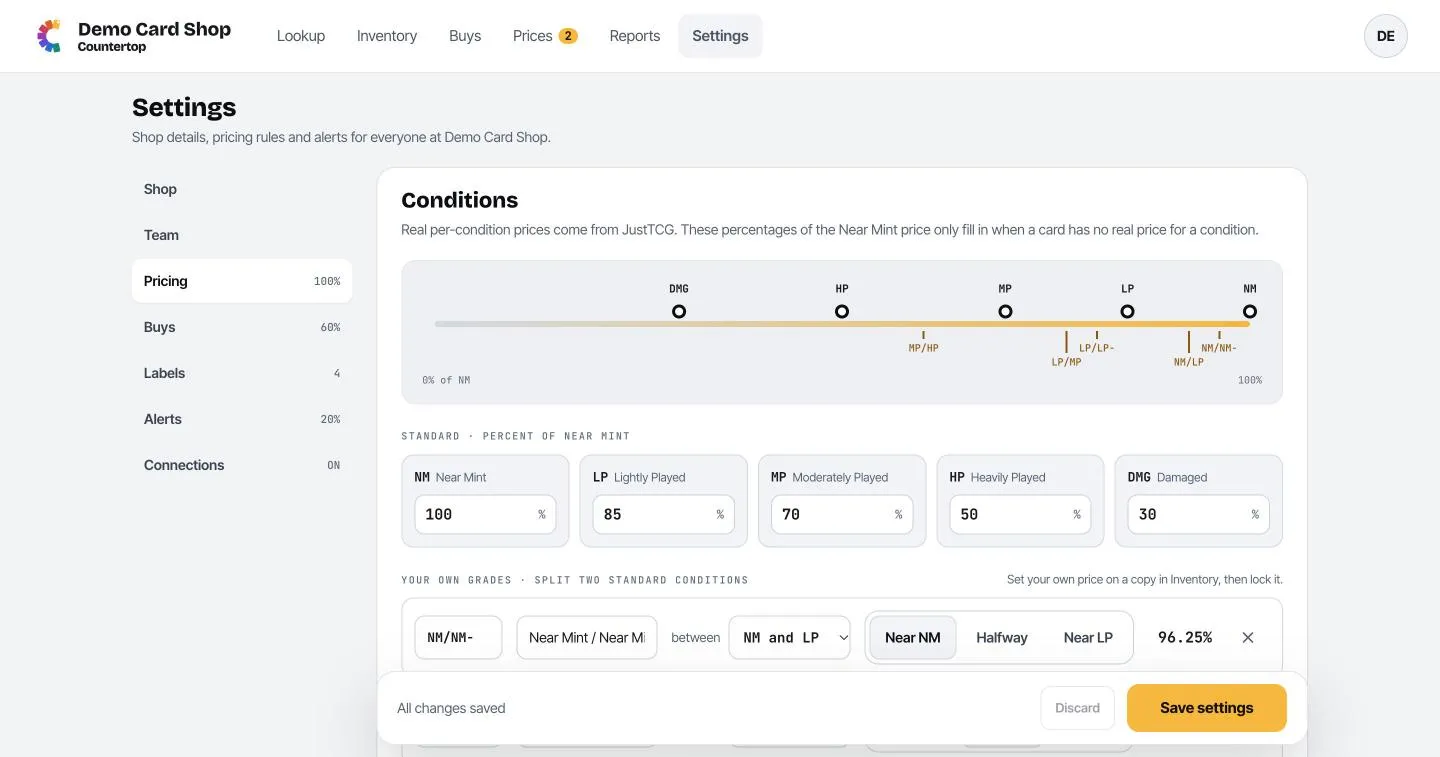
Real prices for played conditions (LP, MP, HP, DMG) come from sales data where it exists. When a card has no real price for a condition, Countertop uses a percentage of the Near Mint price instead. Set those percentages here, for example LP at 85% of Near Mint.
Your own grades
Section titled “Your own grades”Many shops use in-between grades like NM/LP or LP/MP, especially for vintage. Click Add the common split grades to add the usual set, or Add a grade to make your own.
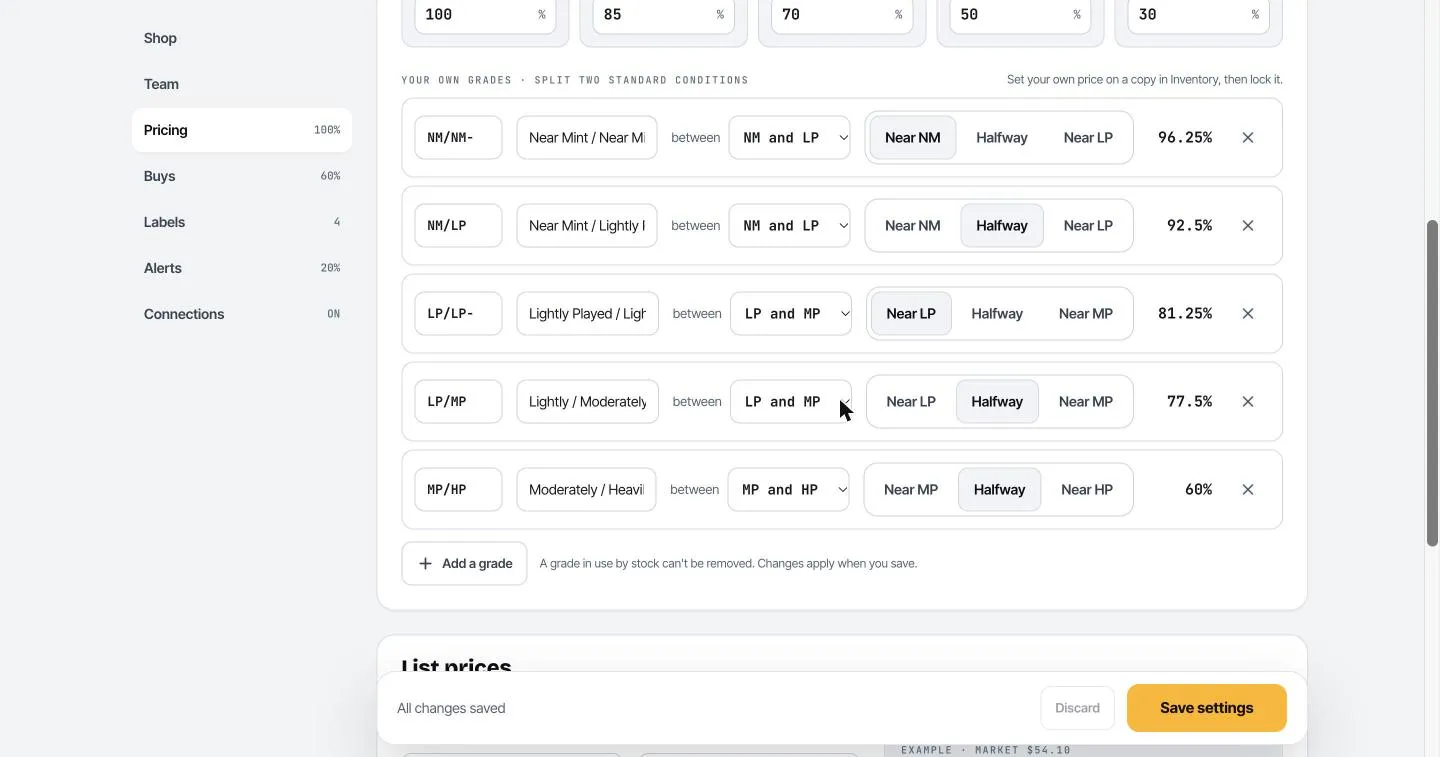
For each grade, give it a short code and a name, pick the two conditions it sits between, and whether it’s near the better one, halfway, or near the worse one. The percentage it works out is shown on the right. New grades show up in every condition menu. A grade that has cards in stock can’t be removed.
List prices
Section titled “List prices”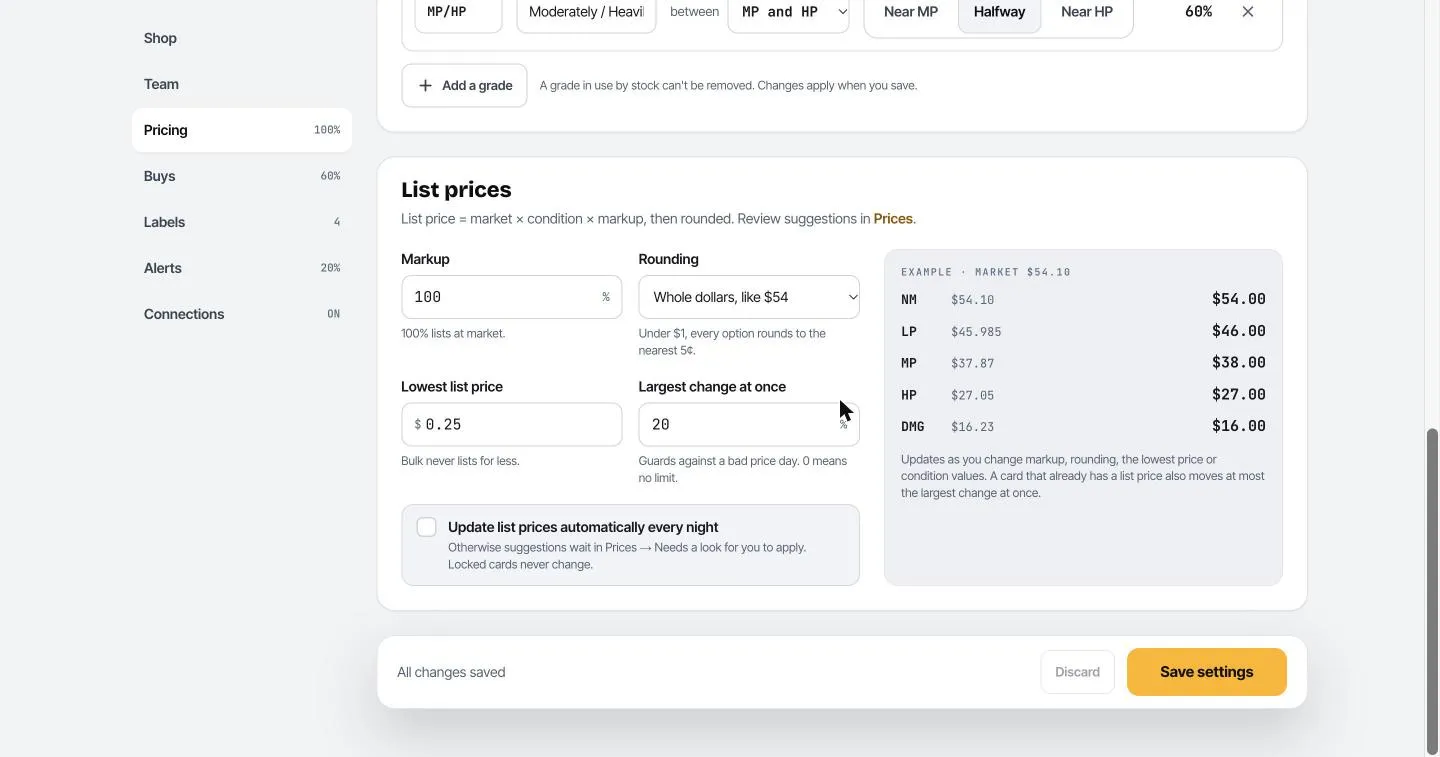
These rules decide the prices suggested in Prices:
- Markup: 100% lists at market; 110% lists 10% above.
- Rounding: end in .99, nearest quarter, whole dollars, or no rounding.
- Lowest list price: nothing lists for less (for bulk).
- Largest change at once: stops one bad price day from moving a card too far.
- Update list prices automatically every night: when ticked, suggestions are applied for you overnight. Locked cards never change.
The example box on the right shows what a $54.10 card would list for in each condition with your current rules.
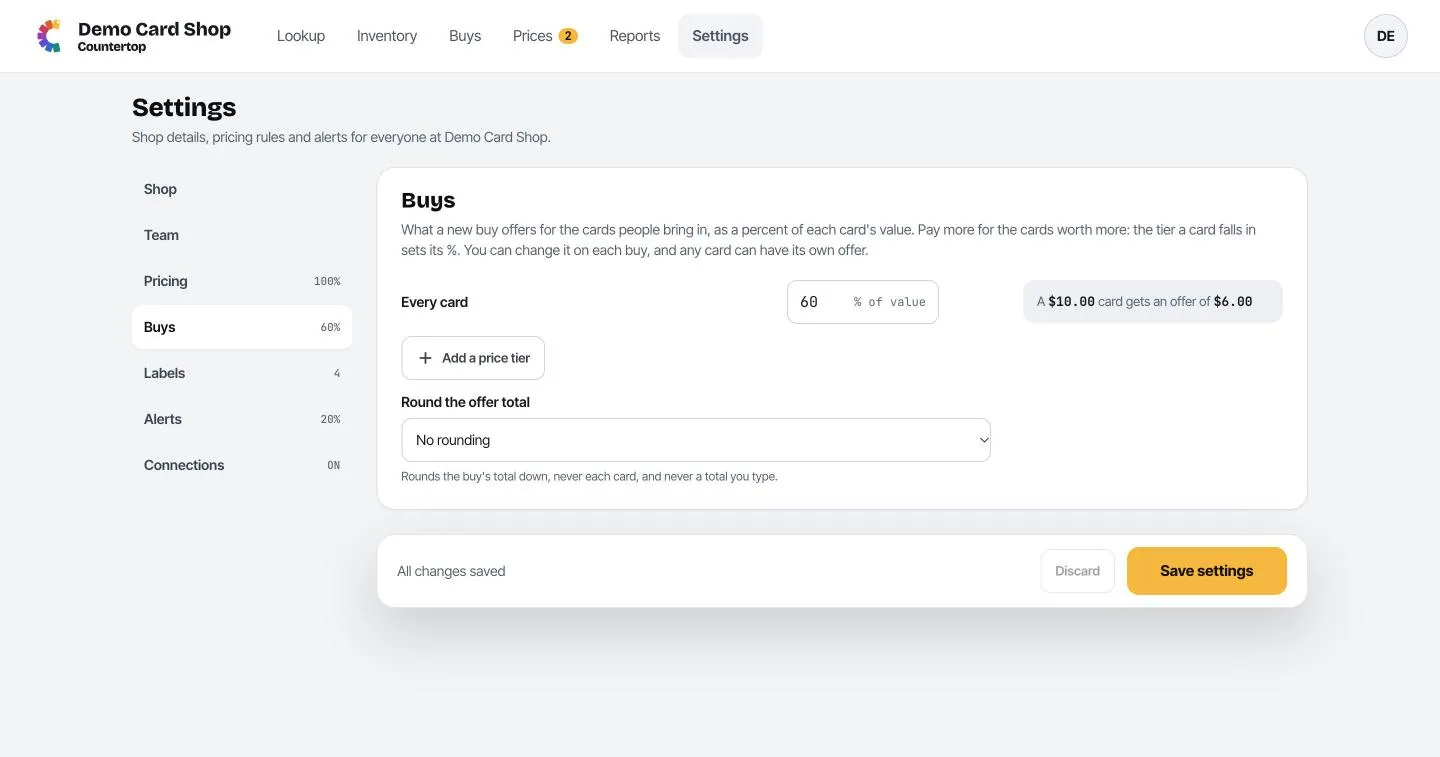
- Every card: the default offer, as a percent of each card’s value (for example 60%).
- Add a price tier: offer a different percent for cards in a price range, for example more for cards worth over $50.
- Round the offer total: round the buy’s total down to the quarter or the dollar.
You can always change the offer on an individual buy. See Buying cards.
Labels
Section titled “Labels”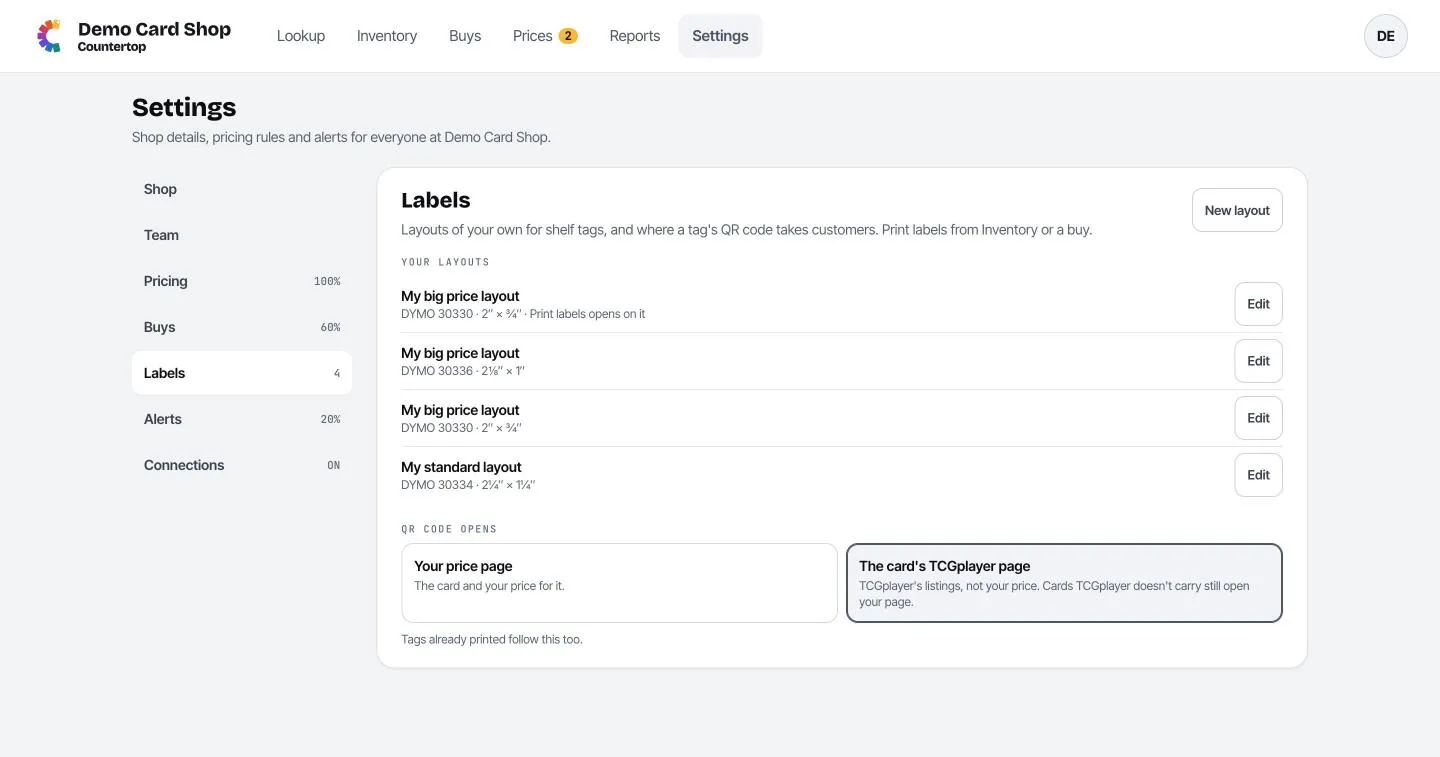
- Your layouts: label designs saved by your team. Click Edit to change one, or New layout to start one. See Design your own layout.
- QR code opens: what customers see when they scan a label’s QR code: Your price page (the card and your price) or The card’s TCGplayer page. Labels you’ve already printed follow this setting too.
Alerts
Section titled “Alerts”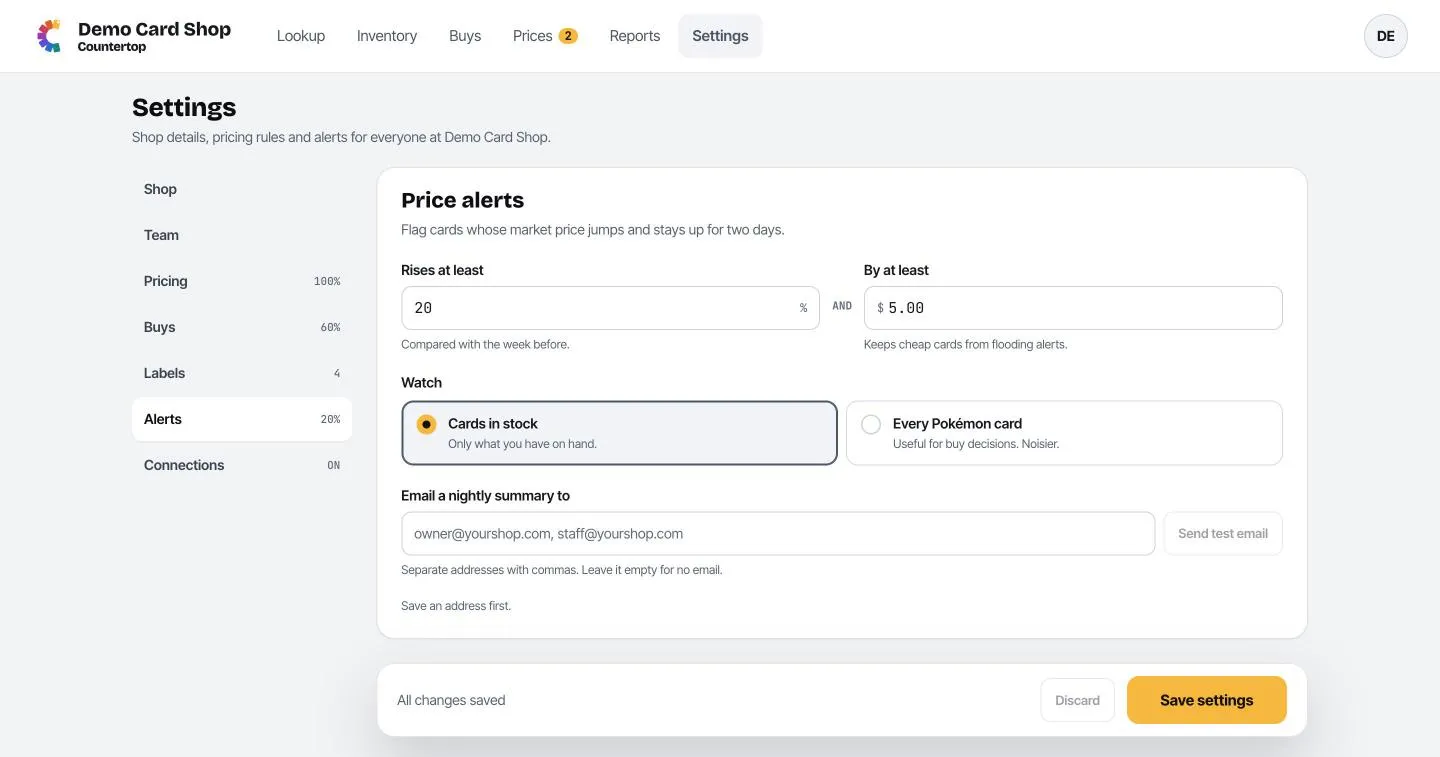
- Rises at least a percent and by at least a dollar amount, compared with the week before. Both must be true, which keeps cheap cards from flooding you with alerts.
- Watch: Cards in stock only, or Every Pokémon card (handy for spotting what to buy, but noisier).
- Email a nightly summary to: one or more email addresses, separated by commas. Leave it empty for no email. Save, then click Send test email to check it arrives.
Connections
Section titled “Connections”- Square: connect your register. See Square.
- Data: where played-condition prices come from. Countertop’s data is included and needs nothing set up. If you have your own JustTCG account, choose My own JustTCG account and paste its API key.