

Looking up cards
Lookup is the home screen. Use it to answer “what’s this card worth?” and “do we have one?”
Search for a card
Section titled “Search for a card”- Click the search box at the top and start typing a card name.
- Suggestions appear as you type: matching cards, sets, and filters. Click one, or press Enter to search for exactly what you typed.
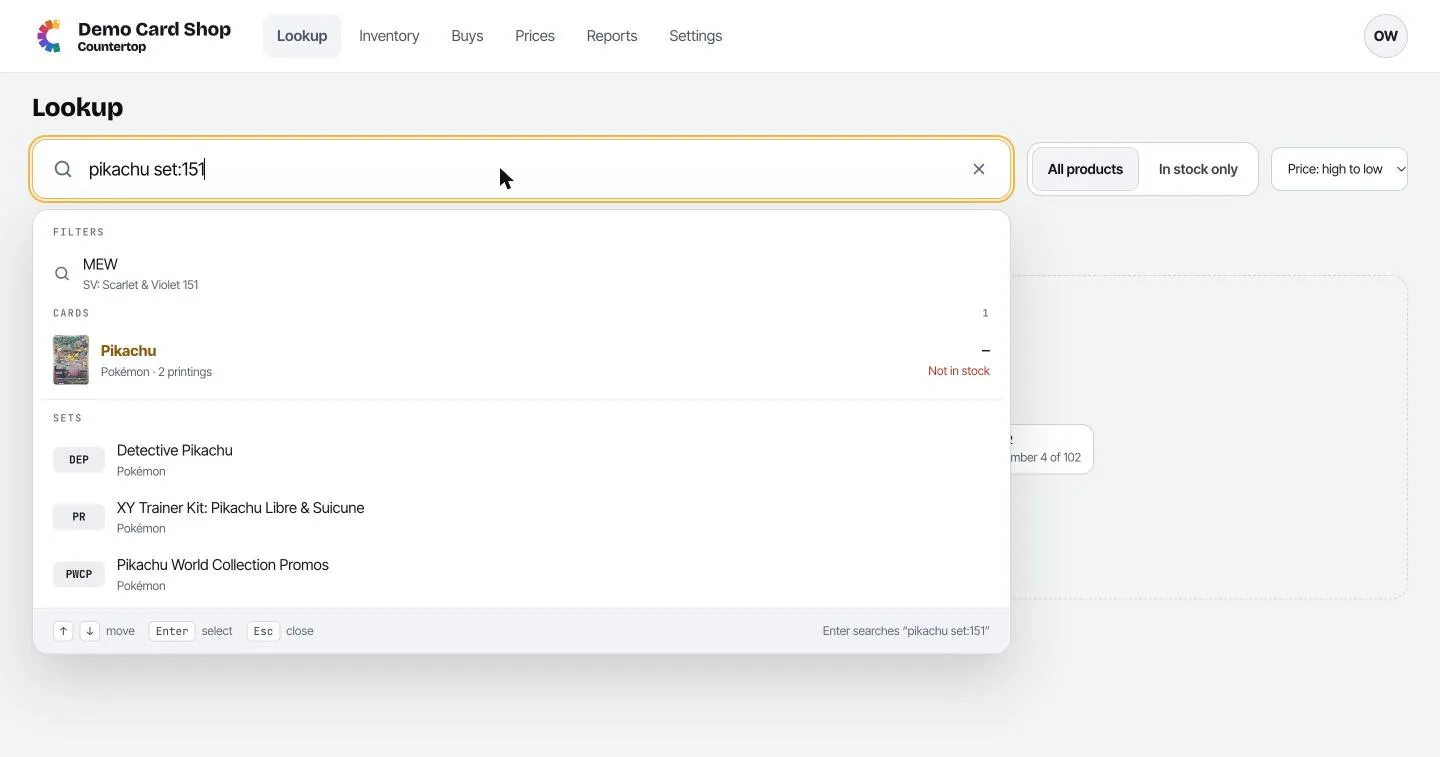
Each result is one printing of a card, with its picture, set and number, and today’s price.
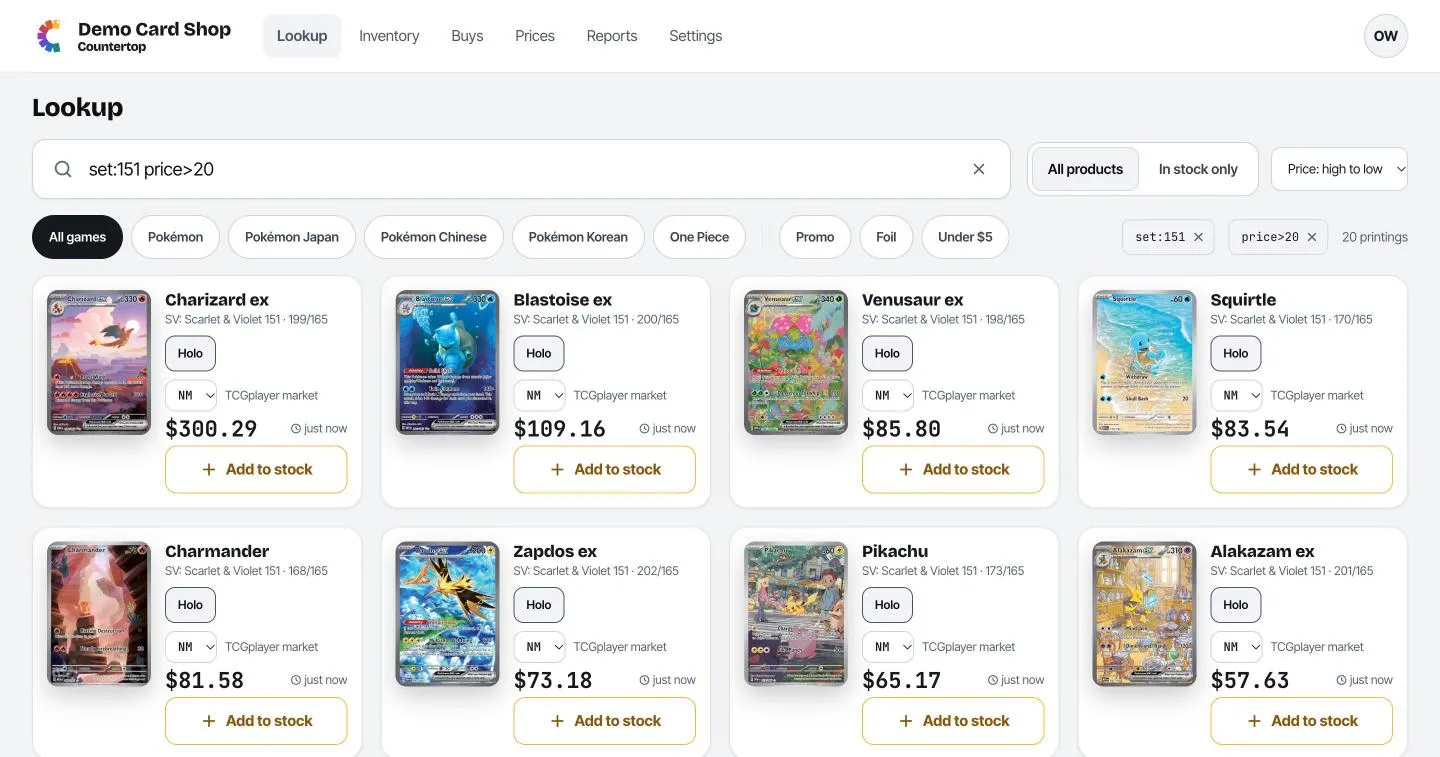
- All products / In stock only switches between the whole catalog and just what you have.
- The sort menu on the right orders results by price (high or low), set, or best match.
- The round buttons under the search box are quick filters: tap Pokémon Japan to see only Japanese cards, Under $5 for cheap cards, and so on. Tap again to turn one off.
- Filters you’ve used show as little tags on the right. Click the × on a tag to remove it.
Search shortcuts
Section titled “Search shortcuts”You can type more than a name. Mix and match these:
| Type this | To find |
|---|---|
charizard |
Any card with “charizard” in the name |
#4/102 or #4 |
A card by its number |
set:151 |
Cards from one set (use the set name or its short code) |
game:jp |
Japanese cards (game:op for One Piece) |
price>20 |
Cards worth more than $20 (<, >=, <= work too) |
rarity:sr |
A rarity (here, secret rare) |
is:promo |
Promo cards |
foil |
Cards that come in a foil or holo version |
-set:151 |
A minus sign means “not” |
"erika's pikachu" |
Quotes keep words together |
The empty Lookup page shows a few examples you can tap to try.
Reading a price
Section titled “Reading a price”On each card:
- Holo / Normal / Reverse (the pill buttons) pick the printing. The price changes to match.
- The small NM menu picks the condition (Near Mint, Lightly Played, and so on).
- Next to it, the source of the price, like TCGplayer market. Estimated means there’s no real sale price for that condition, so Countertop worked it out from the Near Mint price and your shop’s condition percentages (see Settings → Pricing).
- The clock shows how fresh the price is.
- If you have the card, In stock shows under the picture with a count for each condition.
A card’s page
Section titled “A card’s page”Click a card’s name or picture to open its page.
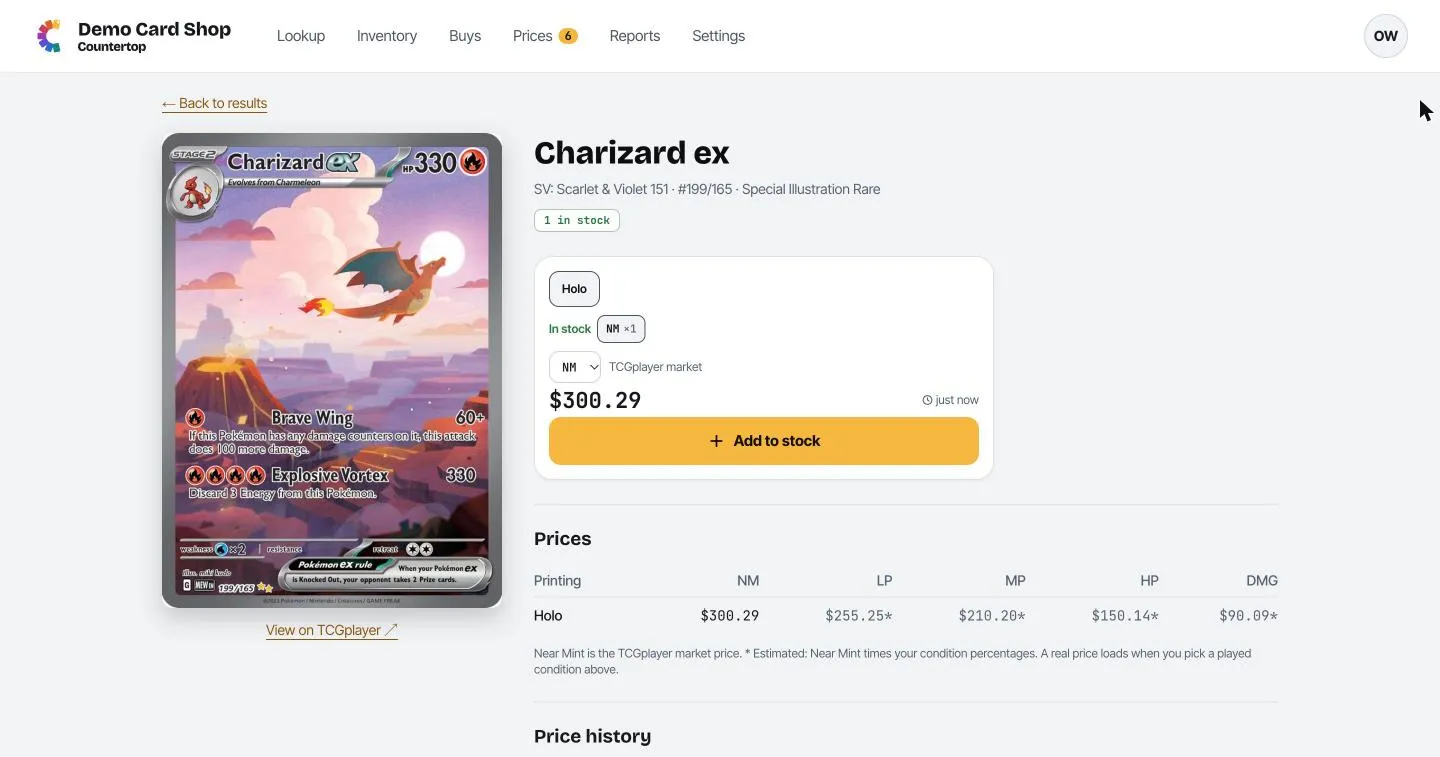
It shows:
- A large picture and a View on TCGplayer link.
- Add to stock, the same as on the search results.
- Prices: every printing in every condition. Prices with a
*are estimates. - Graded prices (when available): what graded copies (Grade 9, PSA 10, and so on) have recently sold for.
- Price history: how the market price moved over the last few weeks. It fills in a day at a time, so new cards show “not enough history yet”.
- In stock: what you have, by printing and condition.
- Card details: type, HP, attacks and so on.
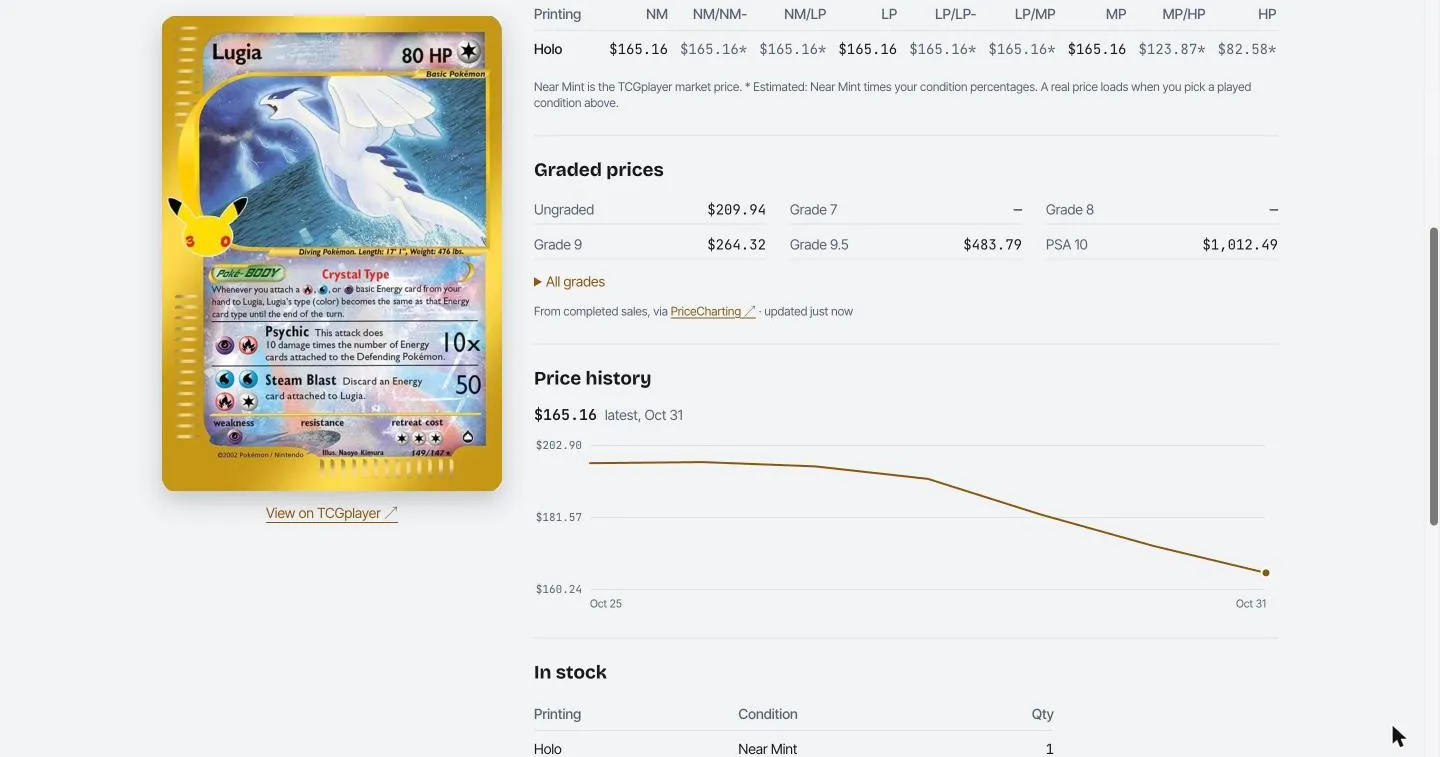
Click ← Back to results to return to your search where you left off.