

Pricing and price alerts
Market prices change every day. The Prices tab tells you which of your cards need a new price, suggests one, and warns you when a card suddenly jumps in value. A number on the Prices tab means something is waiting for you.
How suggested prices work
Section titled “How suggested prices work”Countertop suggests a price for each card using your shop’s rules:
today’s market price × the condition’s percentage × your markup, then rounded
For example, with a 100% markup and “end in .99” rounding, a Near Mint card worth $54.10 is suggested at $53.99. The owner sets these rules in Settings → Pricing.
Needs a look
Section titled “Needs a look”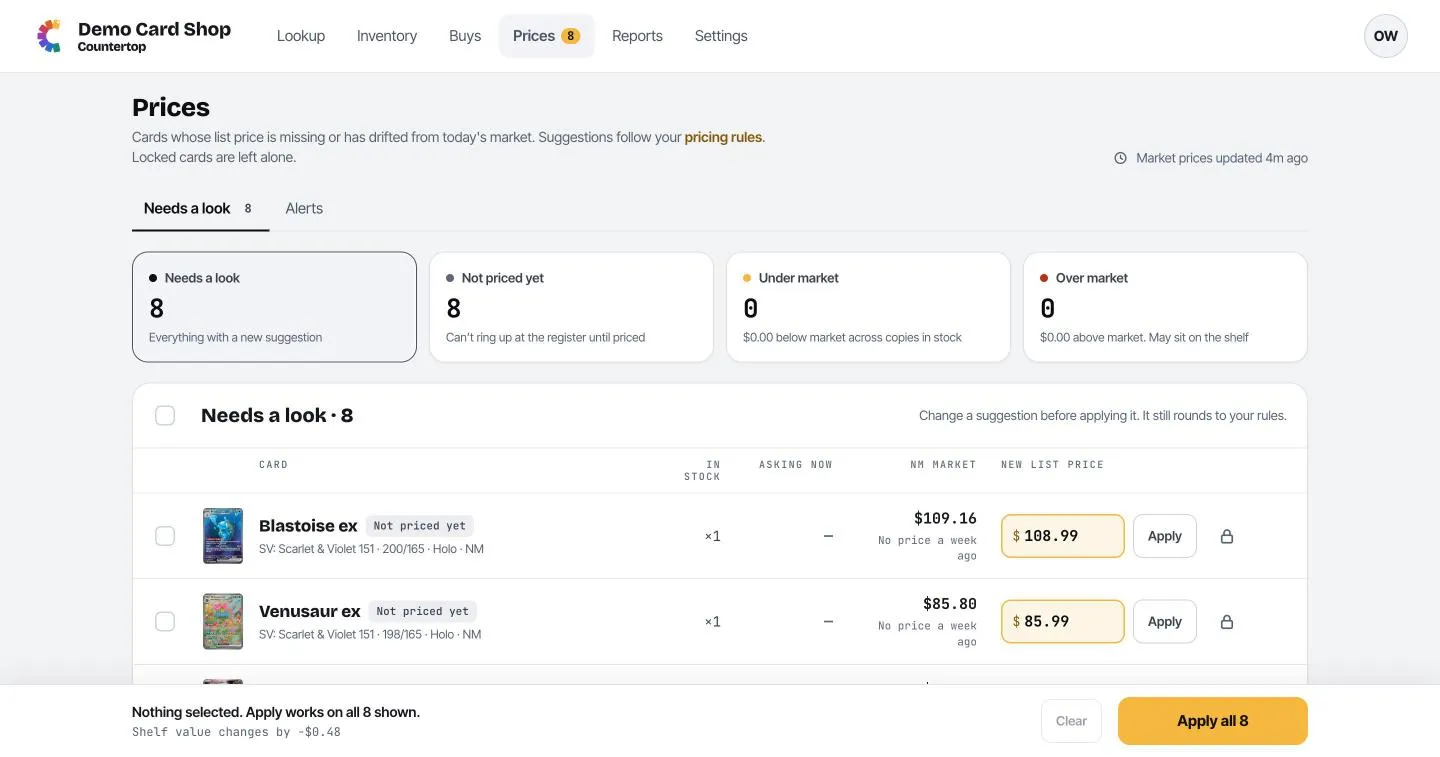
The four boxes at the top sort the cards that need attention:
- Needs a look: every card with a new suggested price.
- Not priced yet: cards with no asking price. Square can’t sell these until they have one.
- Under market: priced below today’s market. You may be leaving money on the table.
- Over market: priced above today’s market. They may sit on the shelf.
Click a box to show just those cards.
For each card you see how many you have, what you’re asking now, the market price, how much the market moved this week, and the New list price Countertop suggests.
Apply one price
Section titled “Apply one price”Check the suggestion (change it if you like; it will still be rounded to your rules) and click Apply. The row turns green with Listed at $X. Made a mistake? Click Undo.
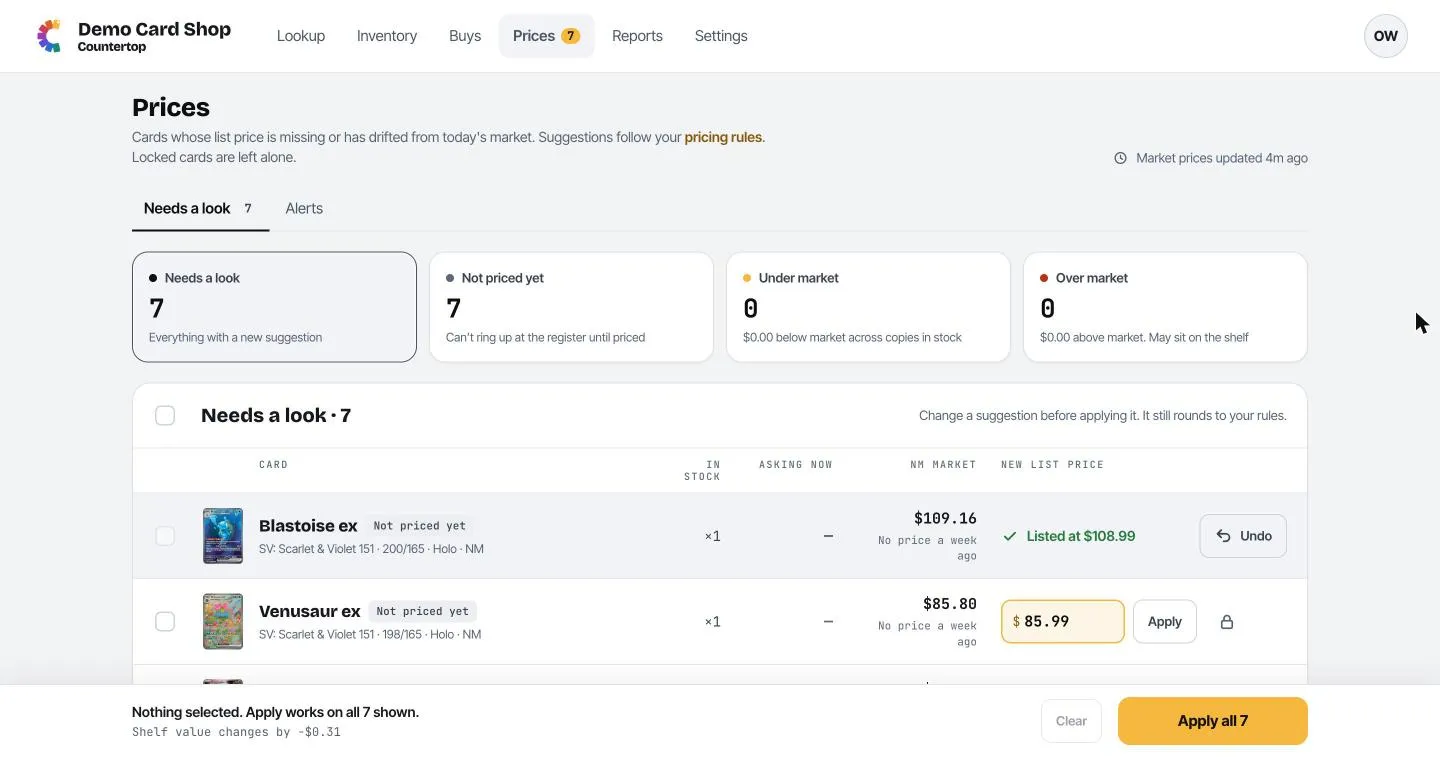
Click the padlock to lock a card instead. Locked cards keep their price and won’t be suggested again.
Apply many at once
Section titled “Apply many at once”Tick the cards you want (or the box at the top to tick them all) and click Apply at the bottom. With nothing ticked, the button says Apply all N and applies every suggestion shown. The bar also tells you how much your shelf value will change.
Applying in bulk needs a manager or owner. Staff can price single cards.
Price alerts
Section titled “Price alerts”The Alerts tab lists cards whose market price jumped and stayed up for two days in a row. That’s a sign your label may be too low, or that a card is worth buying.
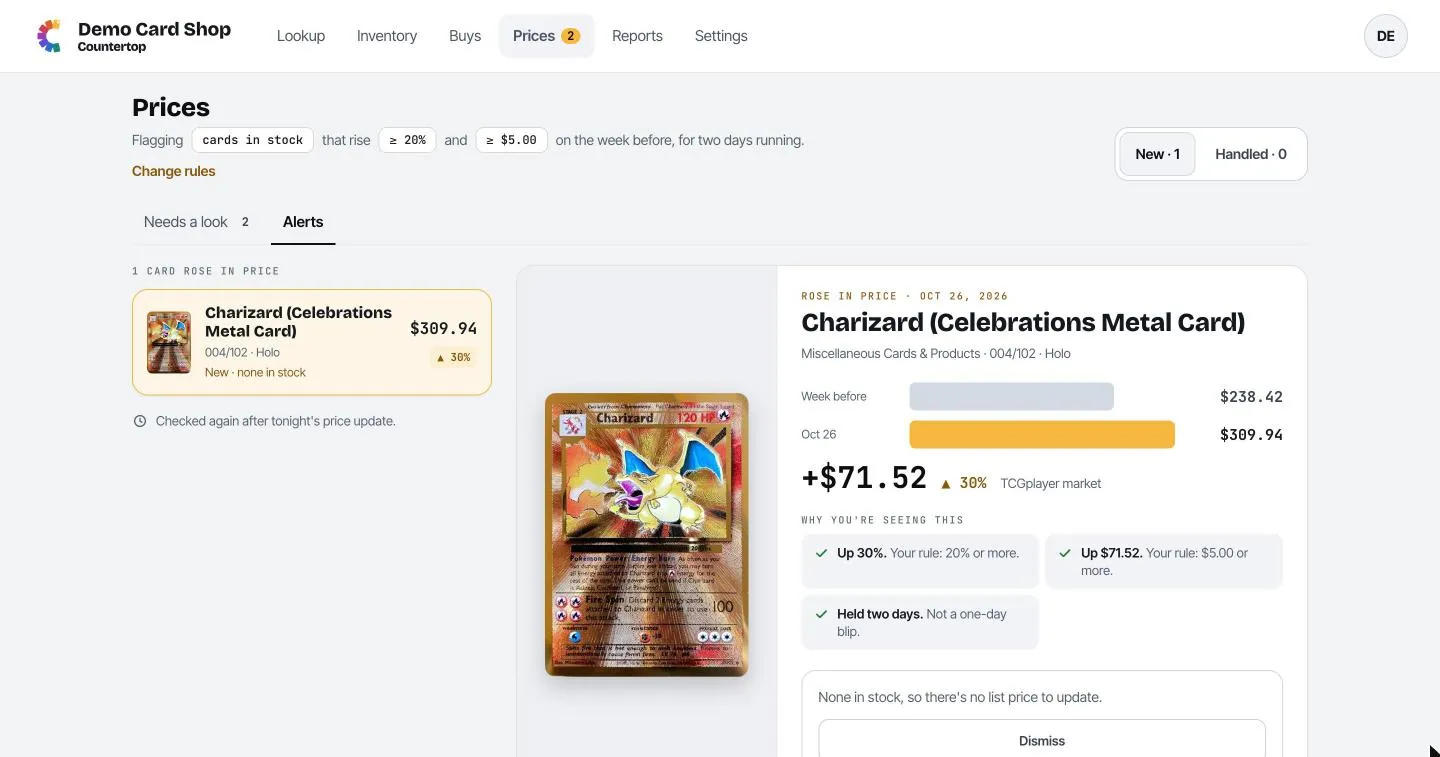
- The top line shows the rule, for example: flag cards in stock that rise at least 20% and at least $5 on the week before.
- Click an alert to see the price before and after and why it was flagged.
- If you have the card in stock, the alert shows a suggested list price. Click Update list price to apply it. Locked copies keep their price unless you tick Update locked copies too.
- To leave the price alone, click Dismiss.
- Alerts are for managers and owners.
- New and Handled at the top right switch between open alerts and ones you’ve dealt with.
The owner sets the alert rule and who gets a nightly email summary in Settings → Alerts.