Adding cards to stock
Got a card in? Find it, pick its condition, and click Add to stock. That’s it.
Add a card
Section titled “Add a card”- Search for the card on Lookup (see Looking up cards).
- Pick the right printing (Holo, Normal, Reverse…) with the pill buttons.
- Pick the condition from the small menu. It starts on NM (Near Mint). The price updates when you change it.
- Click Add to stock. Each click adds one copy.
A message pops up at the bottom to confirm what was added and at what price. Added the wrong one? Click Undo on that message.
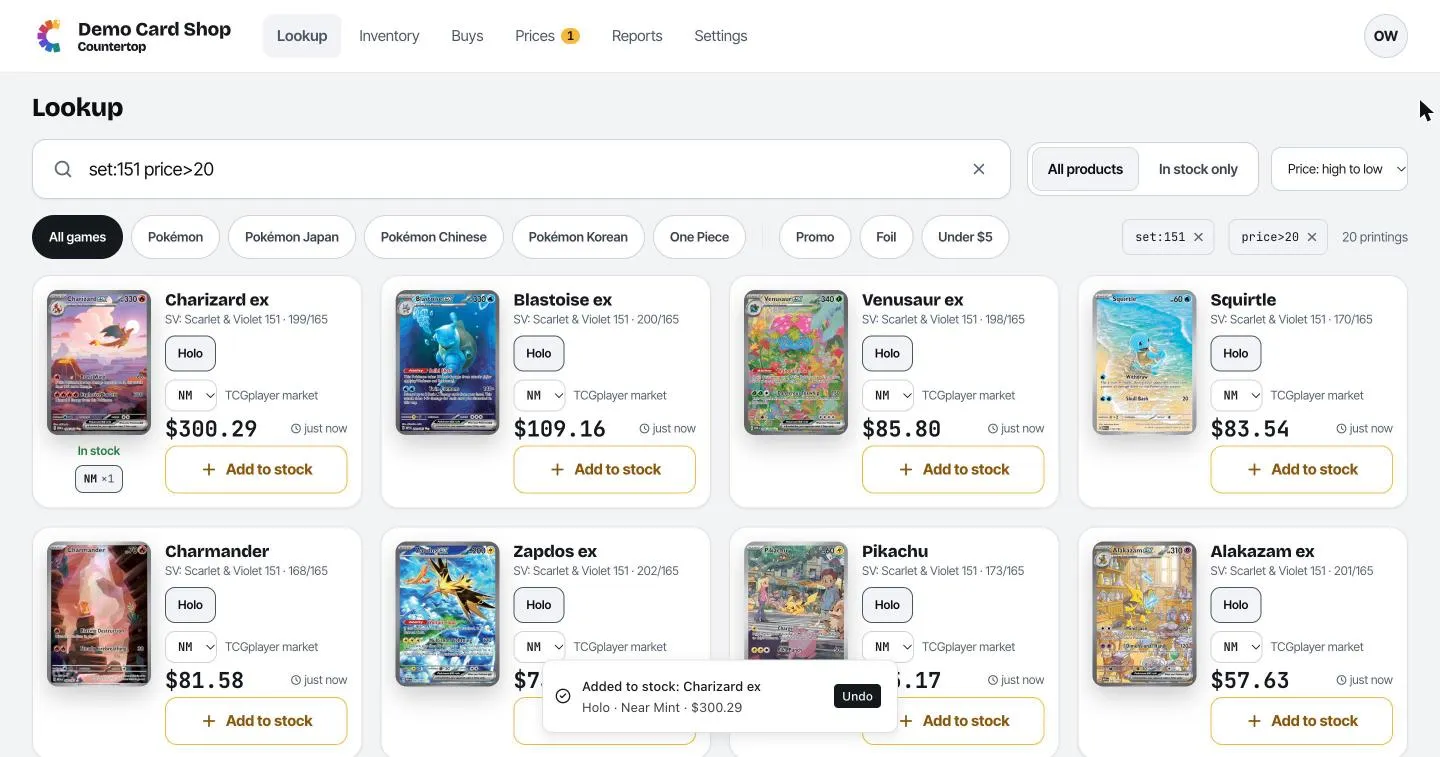
The card now shows In stock with a count under its picture, for example NM ×1.
Good to know
- Adding several copies of the same card? Just click Add to stock again for each one.
- You don’t need to enter what you paid here. You can add it later in Inventory, or let a Buy fill it in.
- If your shop uses its own grades (like NM/LP), they appear in the condition menu too. The owner sets them up in Settings → Pricing.
- If Square is connected, the card is sent to Square automatically. See Square.
Cards the catalog doesn’t have
Section titled “Cards the catalog doesn’t have”Misprints, store promos, sports cards, sealed product: add them as custom cards. Only your shop sees them, and since there’s no market price, you set the price yourself.
Click Can’t find it? Add a custom card on the Lookup page, or Add custom card on the Inventory page. A short four-step form opens.
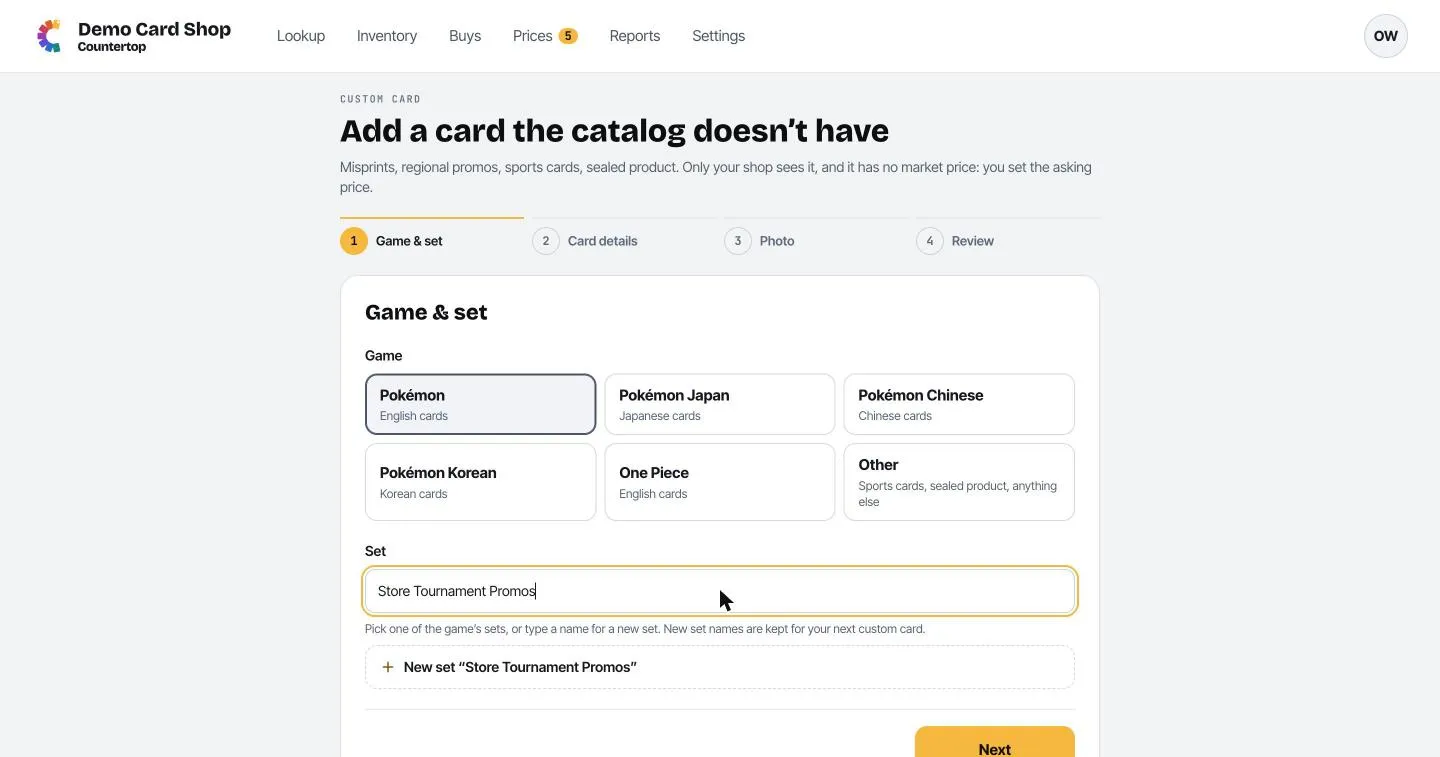
Step 1, Game & set. Pick the game (or Other for anything that isn’t a trading card game we cover). Then pick a set from the list, or type a new set name and click New set “…”. New set names are remembered for next time.
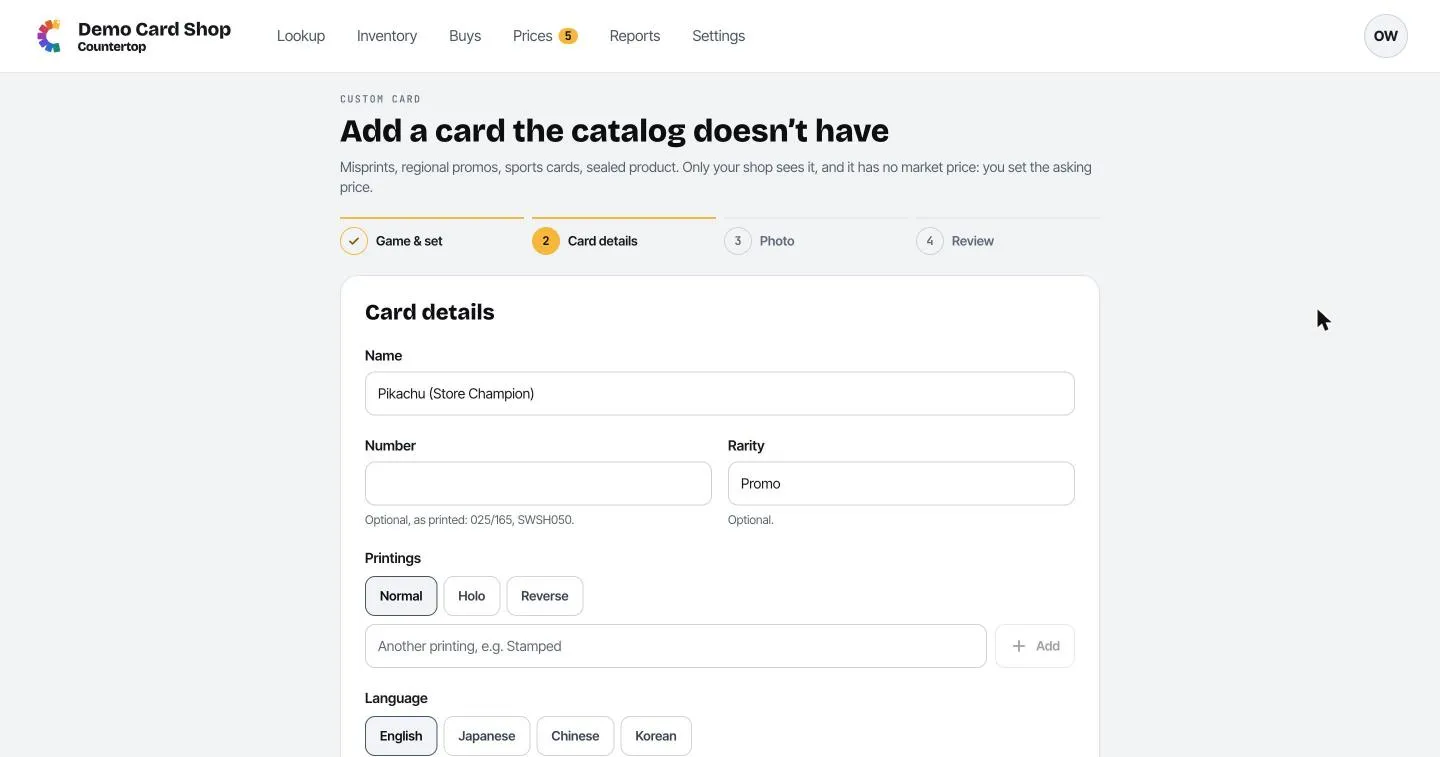
Step 2, Card details. Type the card’s name. The number and rarity are optional. Pick which printings exist (Normal, Holo, Reverse, or type your own like “Stamped”) and the language. The Note is for your team only and never prints on labels.
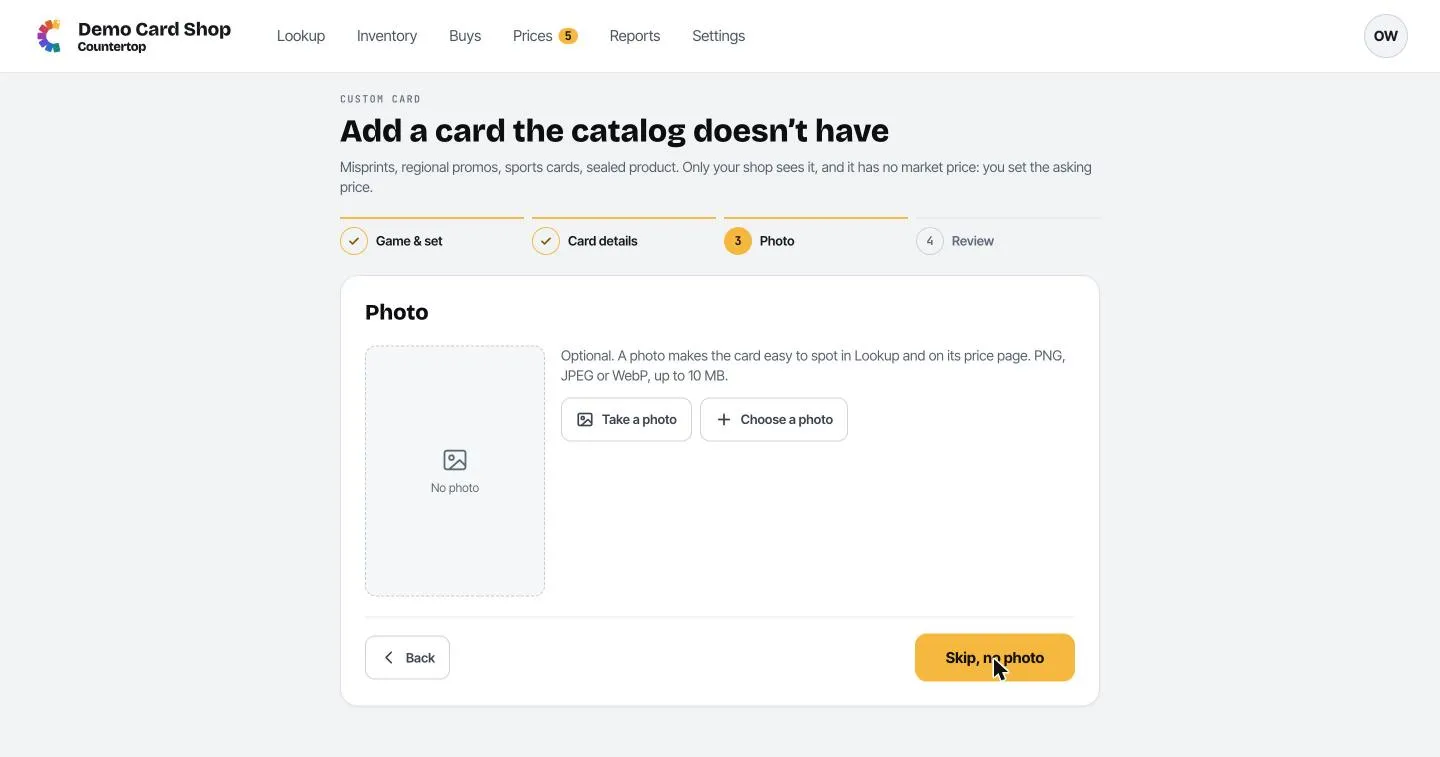
Step 3, Photo. Optional, but it makes the card easy to spot. Take a photo uses the computer’s or tablet’s camera; Choose a photo picks a picture file. Or click Skip, no photo.
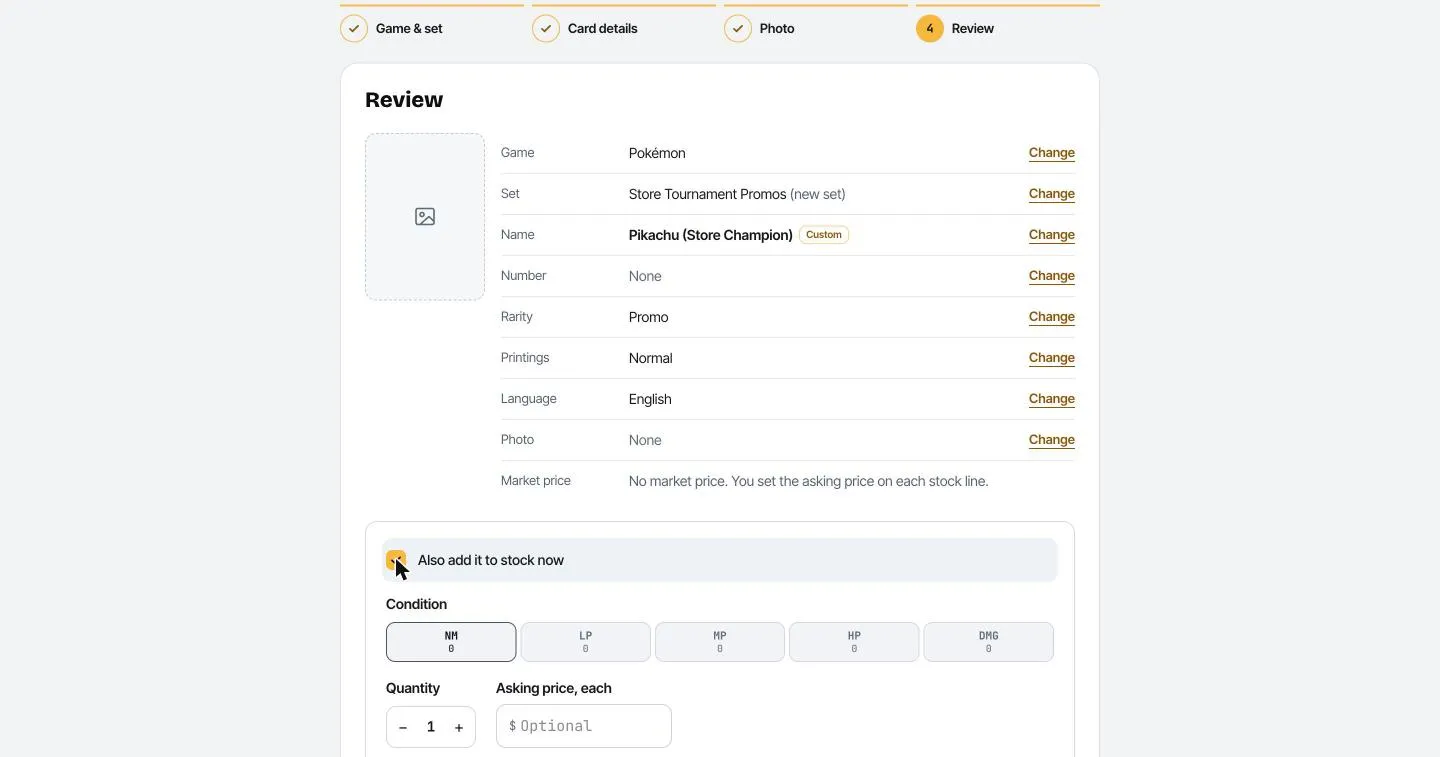
Step 4, Review. Check everything; click Change next to anything that’s wrong. To put copies in stock now, tick Also add it to stock now, pick the condition, quantity and asking price. Then click Create card (or Create and add to stock).
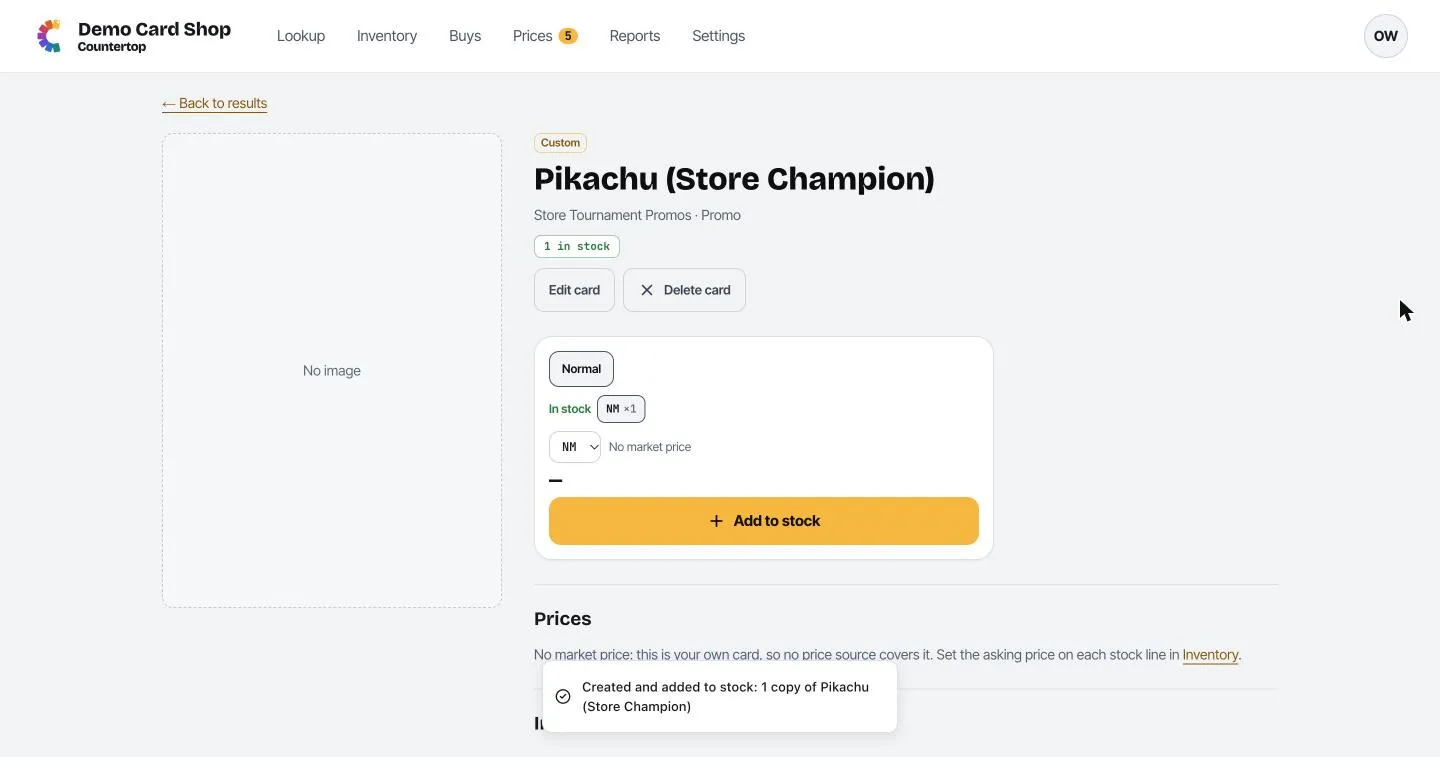
The card’s own page opens. It’s marked Custom, and has Edit card and Delete card buttons in case you need to fix it later.