

Getting started
Logging in
Section titled “Logging in”Open your shop’s Countertop address in any web browser (Chrome, Safari, Edge or Firefox). It
looks like yourshop.countertopcards.com. Bookmark it on the counter computer.
Type your username or email and your password, then click Log in.
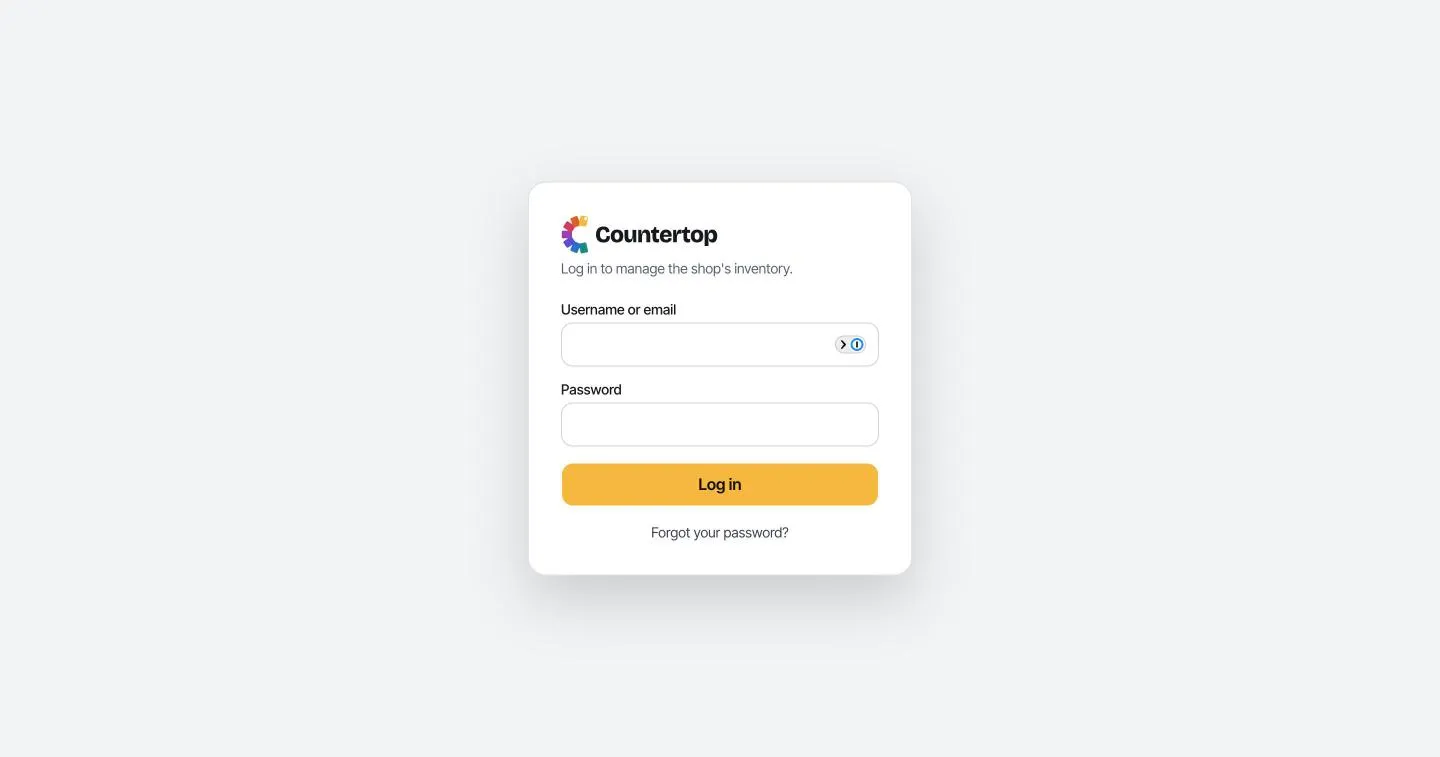
Forgot your password? Click Forgot your password? and enter your email. You’ll get a link to set a new one. (This only works if an email is saved on your profile. See Your profile below.)
Getting around
Section titled “Getting around”Everything lives in the menu bar across the top:
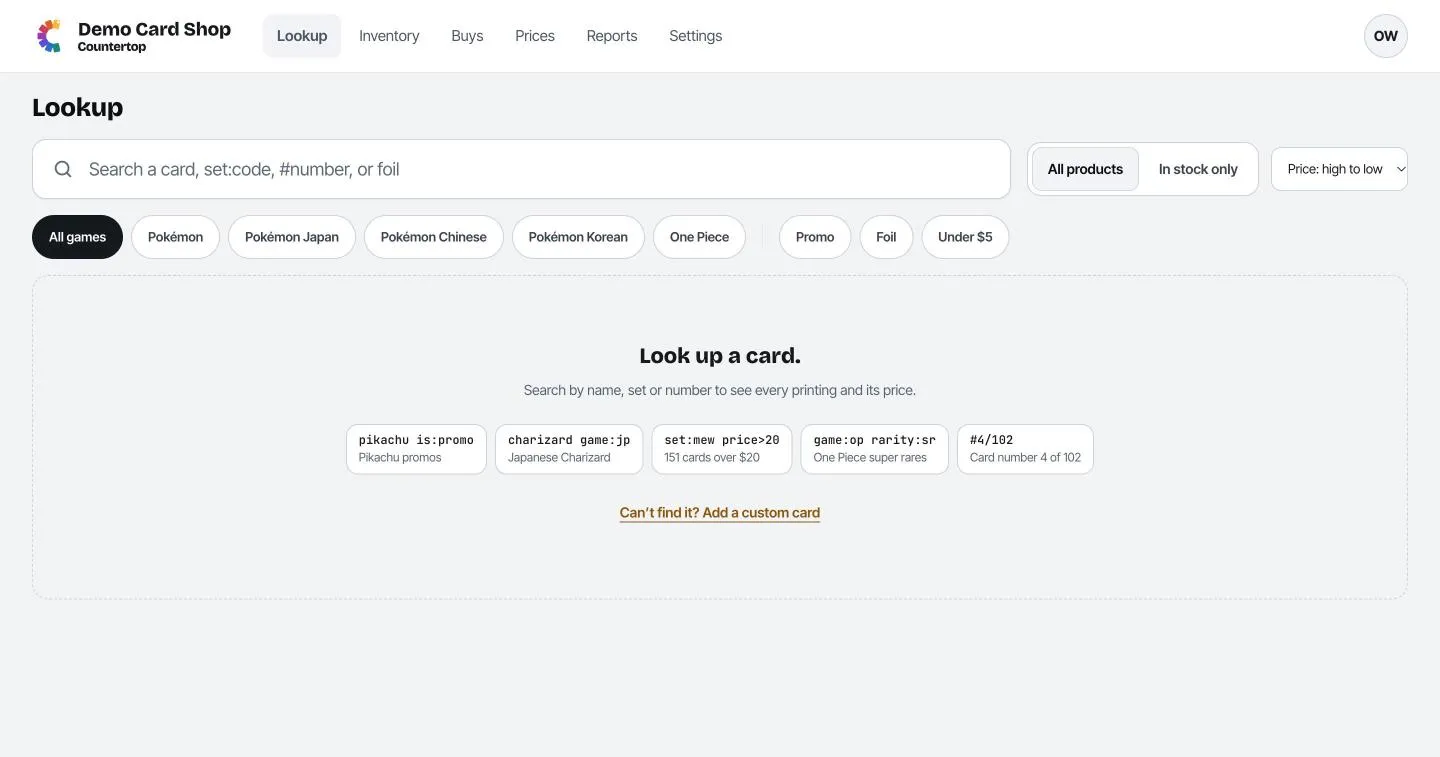
| Tab | What it’s for |
|---|---|
| Lookup | Find any card and its price, and add copies to stock. This is the home screen. |
| Inventory | Everything you have in stock, its prices and what you paid. |
| Buys | Cards you buy over the counter from customers. |
| Prices | Cards whose price needs a look, and cards that jumped in value. A number on the tab means something is waiting. |
| Reports | Who did what, and what your stock is worth. |
| Settings | Shop-wide rules. Most pages are for the owner. |
Your account menu
Section titled “Your account menu”Click the circle with your initials in the top-right corner.
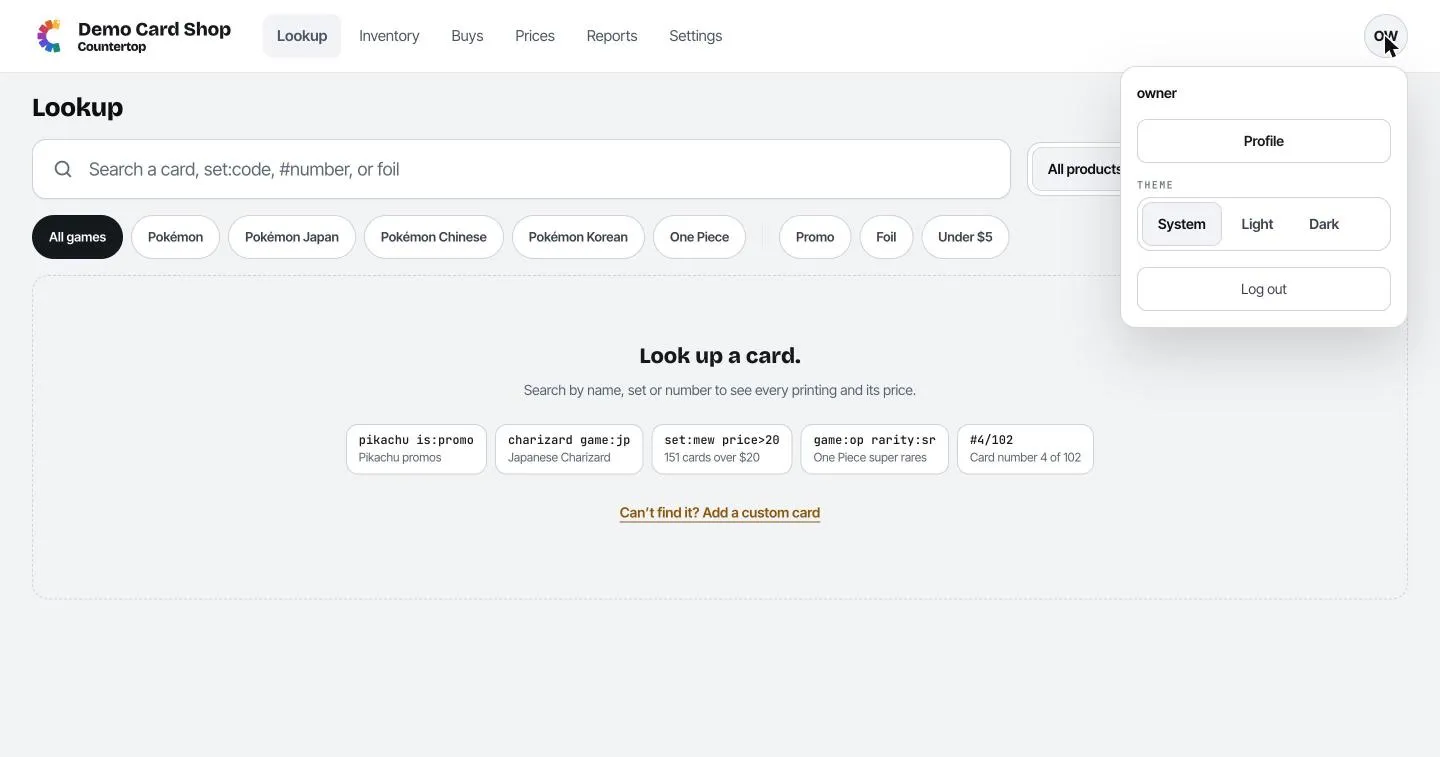
- Profile: your name, email and password.
- Theme: Light, Dark, or System (follows your computer). This only changes your own screen.
- Log out: do this on a shared computer when you leave.
Your profile
Section titled “Your profile”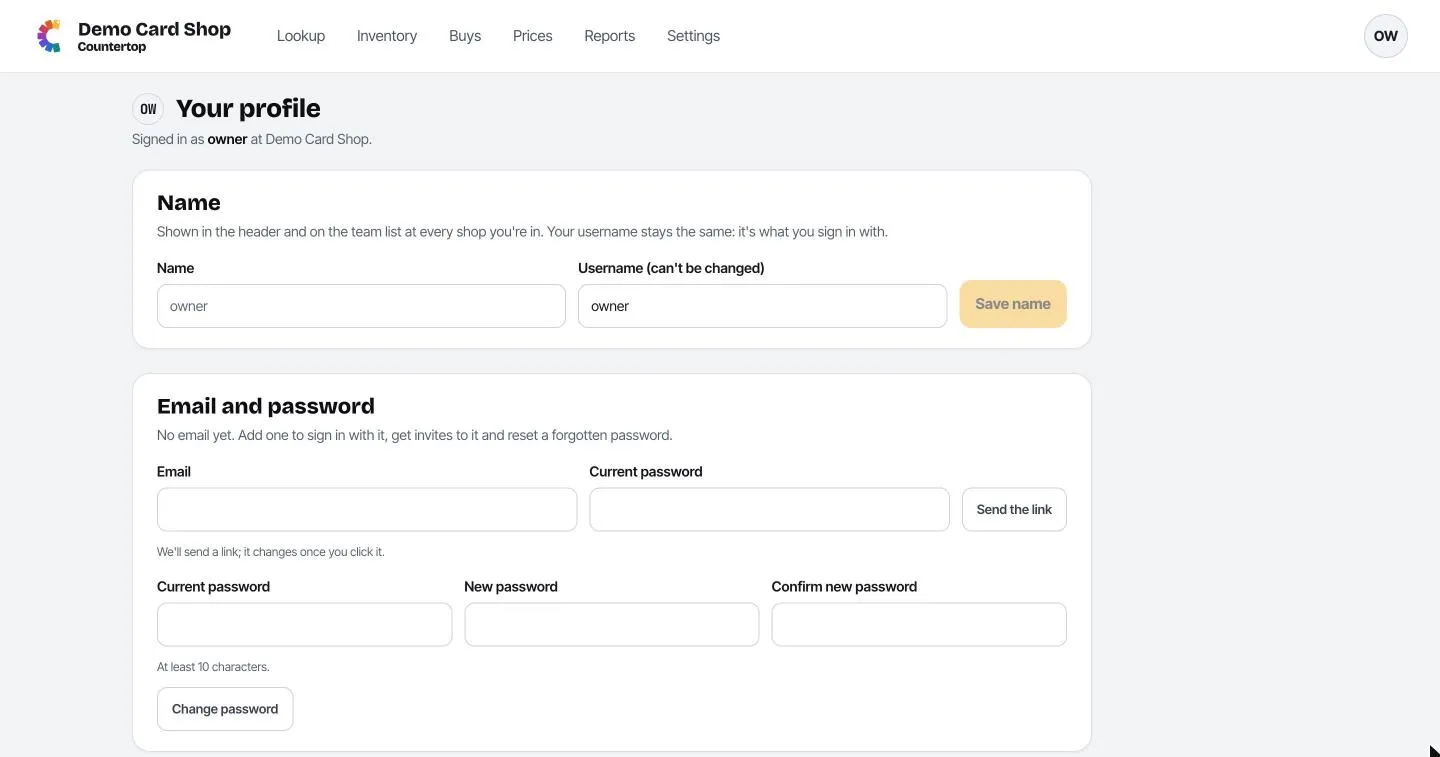
- Name is what your teammates see in the activity log. Your username can’t change; it’s what you log in with.
- Email: add one so you can log in with it and reset a forgotten password. Type it with your current password and click Send the link, then click the link in the email.
- Password: type your current one, then the new one twice (at least 10 characters), and click Change password.