

Your inventory
Inventory shows every card you have in stock.
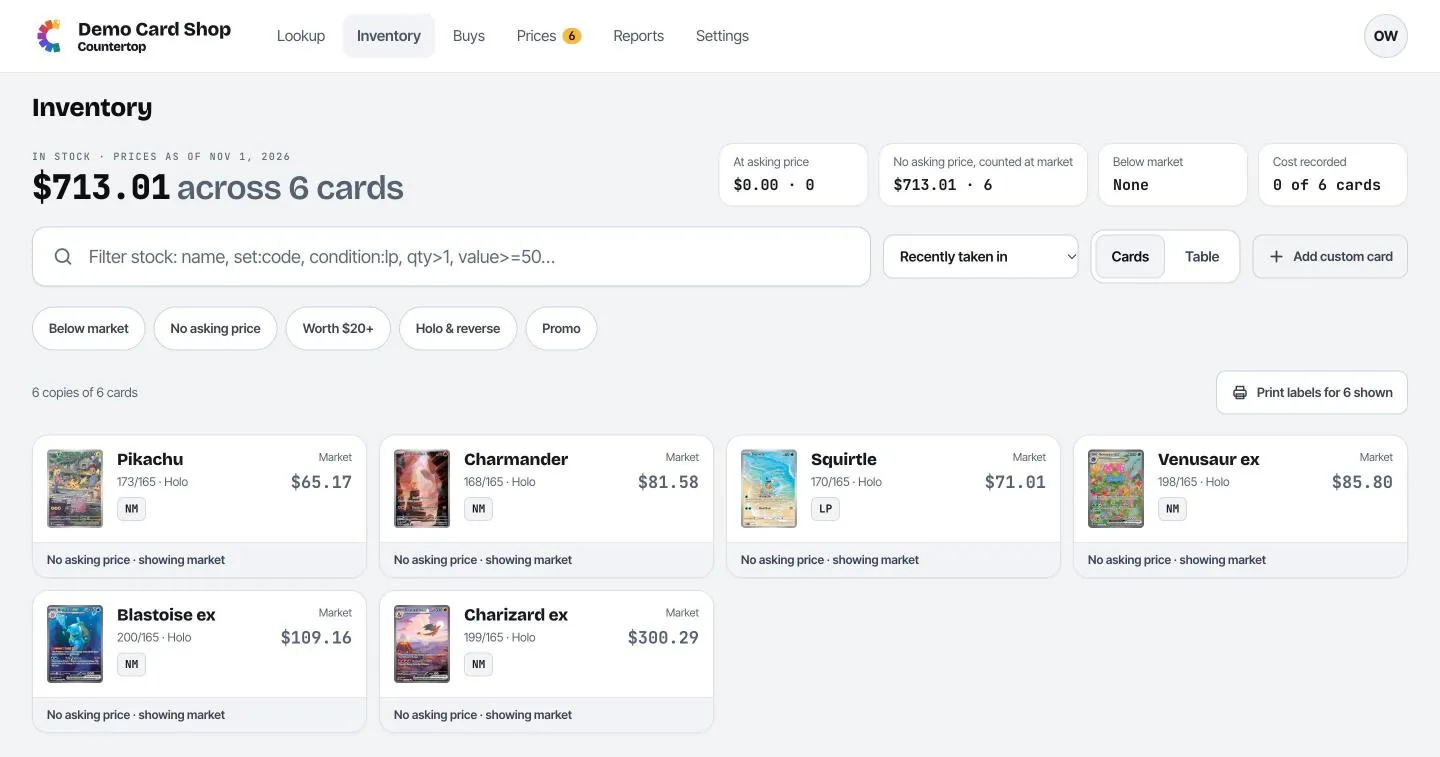
The numbers at the top
Section titled “The numbers at the top”- The big number is what your stock is worth: your asking price where you’ve set one, and today’s market price where you haven’t.
- At asking price: the copies that have a price of your own.
- No asking price, counted at market: copies that still need a price. Square can’t ring these up until they have one. Click it to go price them (see Pricing).
- Below market: copies priced more than 5% under today’s market.
- Cost recorded: how many copies you’ve entered a purchase price for.
Finding cards in your stock
Section titled “Finding cards in your stock”- Type in the filter box to narrow the list. It understands the same shortcuts as Lookup (see
Search shortcuts), plus a few for stock:
condition:lp,qty>1,value>=50. - The round buttons are quick filters: Below market, No asking price, Worth $20+, Holo & reverse, Promo.
- The sort menu orders by Recently taken in, Asking price, Furthest from market or Name.
- Cards / Table switches between picture tiles and a compact list.
Working with one card
Section titled “Working with one card”Click a card to open its panel on the right.
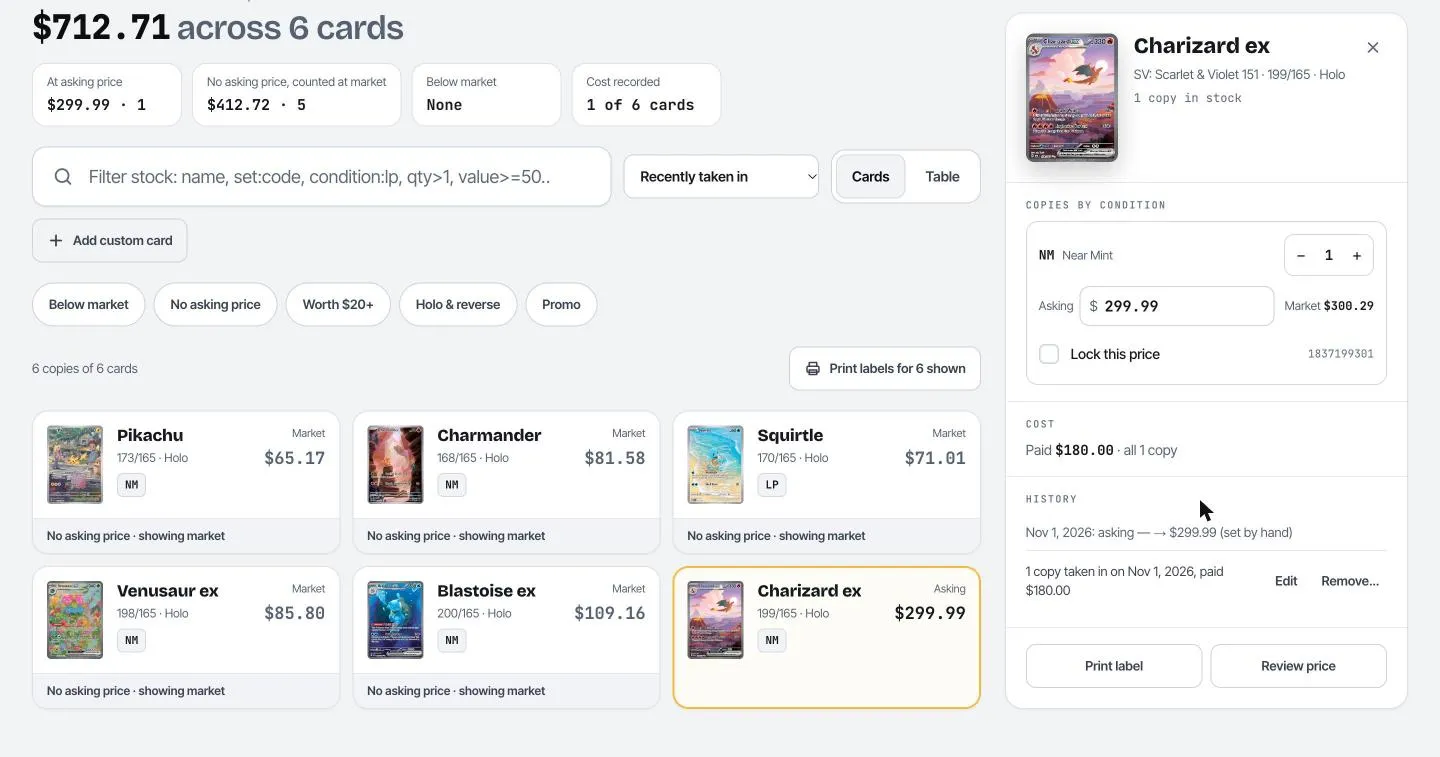
Set an asking price
Section titled “Set an asking price”Type a price in the Asking box and press Enter (or click away). It saves straight away. The market price is shown next to it for comparison. A card without an asking price shows the warning “No asking price. The register can’t ring it up yet.”
Lock a price
Section titled “Lock a price”Tick Lock this price to keep it exactly as you set it. Locked cards are never changed by suggested prices or the nightly price update. Use it for cards you’ve priced by hand on purpose.
Change how many you have
Section titled “Change how many you have”Use the − and + buttons next to the condition to correct the count (a card got damaged, you found an extra copy…). If you remove the last copy, an Undo message appears.
If Square is connected, sales at the register come off automatically, so you don’t need to do this for sales. See Square.
Record what you paid
Section titled “Record what you paid”Under Cost, click Add what you paid. Enter the quantity and the total you paid for them, plus an optional note, then click Save.
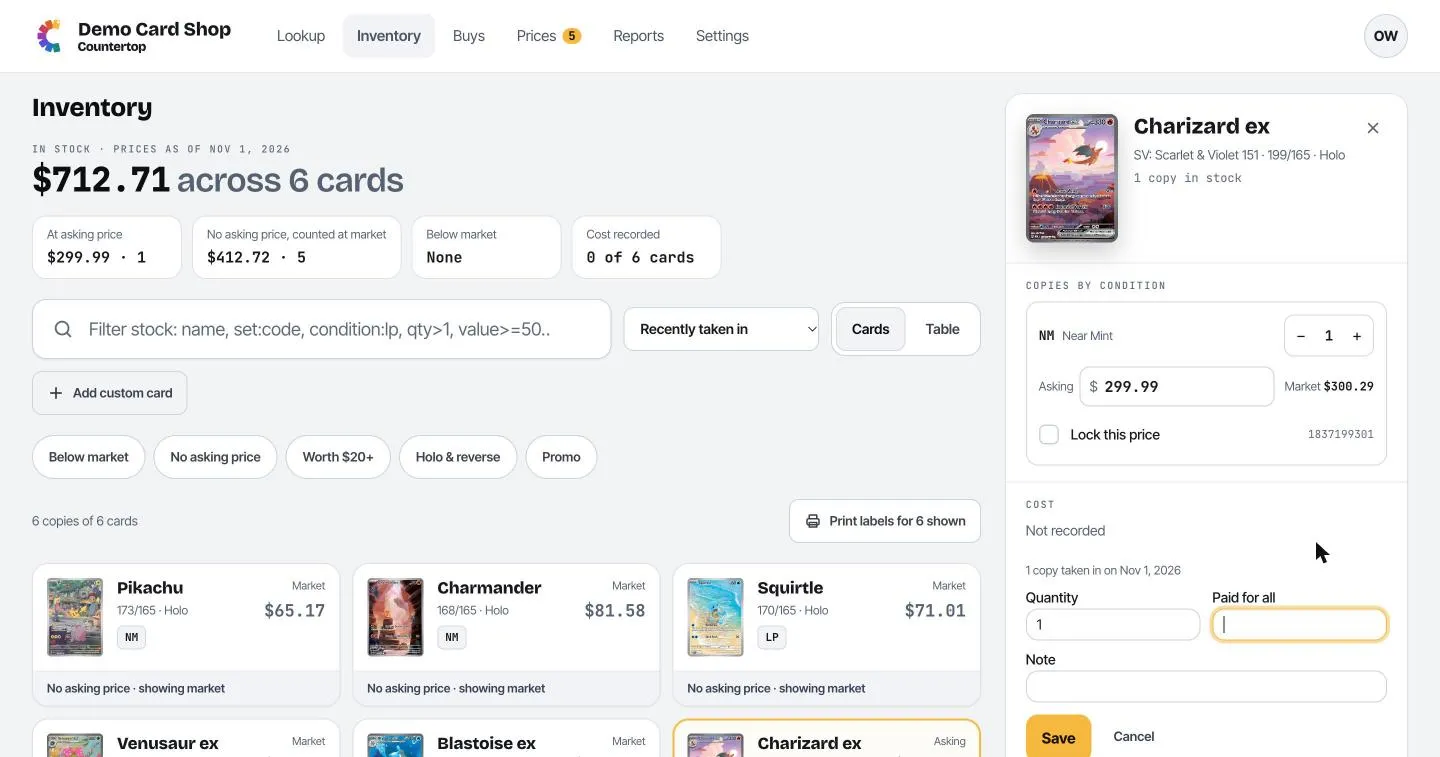
Cards that came in through a Buy already have their cost filled in.
History
Section titled “History”History lists everything that happened to this card: when copies came in (and from which buy), price changes, sales and count corrections. Use Edit to fix a date or amount, or Remove… to delete an entry that was a mistake.
Print a label, review the price
Section titled “Print a label, review the price”Print label opens label printing for this card (see Printing labels). Review price takes you to the card’s suggested price (see Pricing).
Printing labels for many cards
Section titled “Printing labels for many cards”Print labels for N shown prints a label for every card currently in the list. Filter the list
first to print just what you need, for example everything with added:today.